
 English
Nahtloses Messaging: Entdecken Sie die besten Apps zum Senden von Textnachrichten von Ihrem Computer
Im heutigen digitalen Zeitalter ist das Versenden von SMS zu einer der beliebtesten Kommunikationsformen geworden. Aktuellen Statistiken zufolge verschicken Amerikaner durchschnittlich 32 SMS pro Tag.
Während Smartphones das Versenden von Textnachrichten einfacher als je zuvor gemacht haben, kann das Tippen auf einem kleinen Bildschirm frustrierend sein. Darüber hinaus ist es nur manchmal praktisch oder angemessen, Ihr Telefon zum Versenden von SMS zu verwenden – zum Beispiel, wenn Sie auf der Arbeit oder an einem öffentlichen Ort sind.
Hier liegt die Fähigkeit dazu SMS von Ihrem Computer aus senden ist praktisch. Mithilfe von Desktop- und webbasierten Apps können Sie ganz einfach und unkompliziert arbeiten Effizientes Senden und Empfangen von Texten Nachrichten.
Die besten Desktop-Apps zum Versenden von SMS von Ihrem Computer aus
Wenn Sie SMS von Ihrem Computer aus senden möchten, sind Desktop-Apps oft die zuverlässigste Option, da sie nicht auf eine Internetverbindung angewiesen sind. Zwei der beliebtesten Desktop-Apps zum Versenden von SMS sind iMessage und Android-Nachrichten. iMessage: iMessage ist eine App, mit der Benutzer SMS-API-Texte, Fotos, Videos und andere Dateien zwischen Apple-Geräten senden können.
Es verfügt über mehrere wertvolle Funktionen, darunter Lesebestätigungen, Tippindikatoren und End-to-End-Verschlüsselung für mehr Privatsphäre. Um iMessage auf Ihrem Mac-Computer verwenden zu können, müssen Sie macOS Catalina oder höher installiert haben und sich mit Ihrer Apple-ID anmelden.
Android-Nachrichten: Android-Nachrichten (jetzt Google Messages genannt) ist eine weitere der besten Apps für Textnachrichten vom Computer, mit der Benutzer mit Android-Geräten Textnachrichten von ihren Computern aus senden können. Darüber hinaus bietet es Funktionen wie Gruppen-Messaging-Unterstützung, Nachrichtensuchfunktion und die Möglichkeit, Nachrichten im Voraus zu planen.
Während sowohl iMessage als auch Android Messages einzigartige Vorteile für Benutzer bieten, die von ihrem Computer aus über ihr Smartphone Textnachrichten senden möchten; Sie haben auch einige Nachteile. Zum Beispiel,
Die besten webbasierten SMS-Apps für Computer
Wenn Sie eine webbasierte Lösung zum Versenden von SMS von Ihrem Computer aus bevorzugen, gibt es mehrere Apps, mit denen Sie genau das tun können. Zwei der beliebtesten Webbasierte Apps zum Versenden von SMS von Ihrem Computer sind MightyText und Pushbullet. MightyText: MightyText ist eine webbasierte App, die mit Ihrem Android-Telefon synchronisiert wird, damit Sie SMS-APIs senden und Textnachrichten auf Ihrem Computer empfangen können.
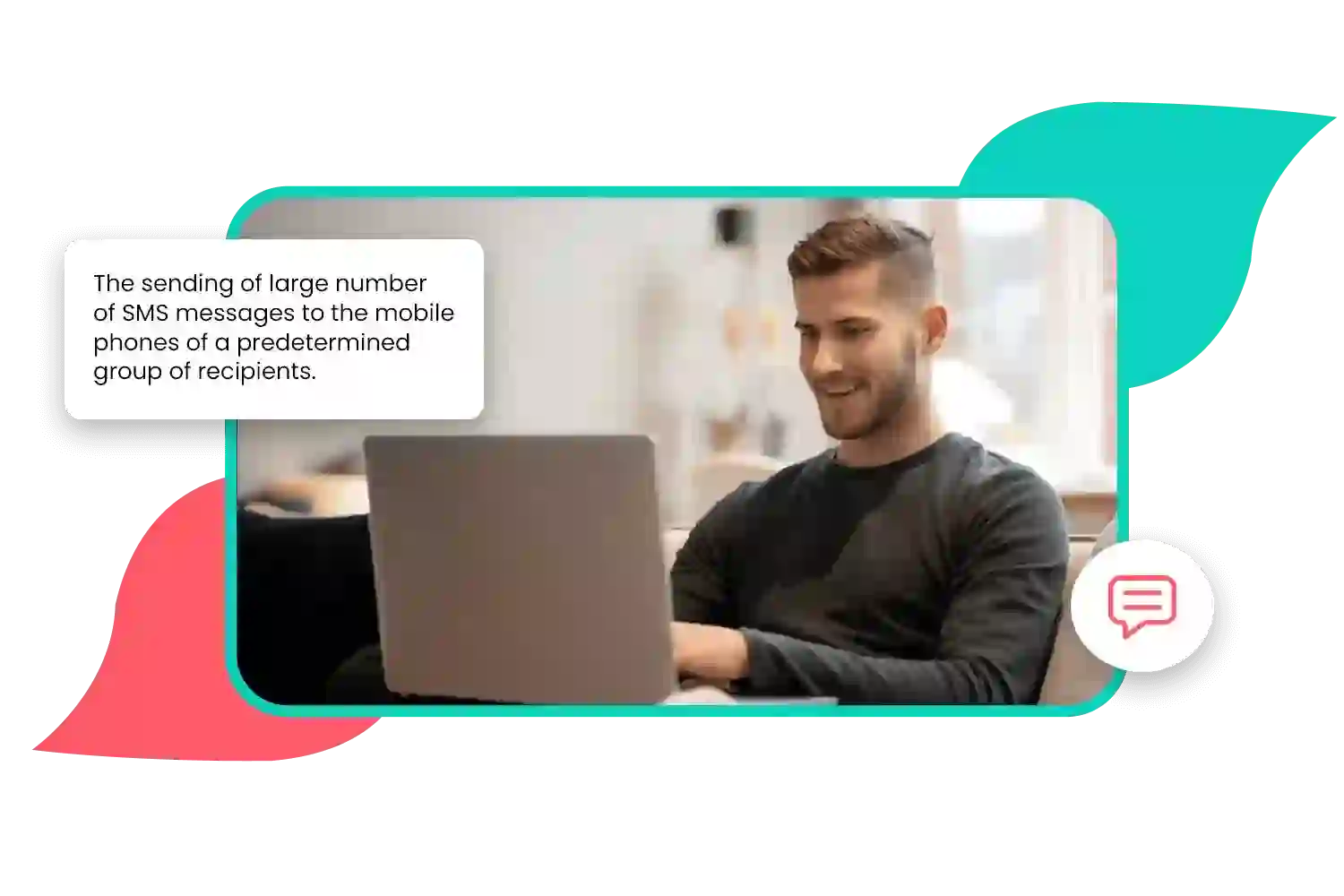
Zu den Funktionen gehören die Planung, das Versenden von SMS-API-Massennachrichten und der Zugriff auf Fotos aus der Galerie Ihres Telefons. Pushbullet: Pushbullet ist eine weitere beliebte App, mit der Benutzer ihr Smartphone und ihren Computer verbinden können.
Damit können Sie SMS-API-Textnachrichten, Links, Dateien und Benachrichtigungen von Ihrem Telefon direkt an Ihren Computer senden. MightyText und Pushbullet bieten einzigartige Vorteile für Benutzer, die von ihrem Computer aus über ihr Smartphone SMS schreiben möchten, haben aber auch einige Nachteile.
WhatsApp Web: Eine Nischenoption
Für diejenigen, die WhatsApp als primäre Messaging-Plattform verwenden, bietet WhatsApp Web eine bequeme Möglichkeit, auf Texte auf einem größeren Bildschirm zuzugreifen. Darüber hinaus bietet WhatsApp Web Benutzern alle in der mobilen App verfügbaren Funktionen, einschließlich Sprachanrufen und Dateifreigabe.
Telegram Desktop App: Eine weitere Nischenoption
Die Telegram Desktop App ist vor allem für ihre Ende-zu-Ende-Verschlüsselungsfunktion bekannt, die sicherstellt, dass nur die SMS-Sende-API und der Empfänger die zwischen ihnen gesendeten Nachrichten lesen können. Abgesehen davon verfügt die API zum Senden von SMS über ähnliche Eigenschaften, wie z. B. die Unterstützung von Gruppennachrichten. ; Unabhängig davon, ob Sie Desktop- oder webbasierte Optionen bevorzugen oder starke Vorlieben in Bezug auf zusätzliche Funktionen haben, bietet dieser Leitfaden einen Überblick über einige der besten Apps zum Versenden von SMS von Ihrem Computer aus.
Desktop-Apps
Für diejenigen, die dedizierte Desktop-Apps bevorzugen, sind iMessage und Android Messages zwei beliebte Optionen zum Versenden von SMS von Ihrem Computer aus.
iMessage
iMessage ist Apples native Messaging-App für Mac-Computer und iOS-Geräte. Einer der Vorteile von iMessage besteht darin, dass es nahtlos zwischen allen Apple-Geräten synchronisiert wird, sodass Sie ein Gespräch auf Ihrem Telefon beginnen und es auf Ihrem Computer fortsetzen können, ohne einen Takt zu verpassen. Um iMessage auf Ihrem Mac einzurichten, öffnen Sie die Nachrichten-App und melden Sie sich mit Ihrer Apple-ID an.
Stellen Sie sicher, dass unter „Einstellungen“ die Option „Nachrichten in iCloud aktivieren“ aktiviert ist, um sicherzustellen, dass Ihre Nachrichten auf allen Geräten synchronisiert bleiben. Ein Nachteil von iMessage ist, dass es nur für Apple-Benutzer verfügbar ist; Wenn Sie jemandem eine SMS schreiben, der kein iPhone oder Mac verwendet, müssen Sie eine andere App verwenden.
Android-Nachrichten
Android-Benutzer können Android Messages verwenden, wodurch sie SMS-API- und MMS-Nachrichten von ihren Computern aus senden können. Wie iMessage werden Android-Nachrichten zwischen Geräten synchronisiert – da es jedoch nicht auf eine Plattform beschränkt ist, ist es eine vielseitigere Option für die plattformübergreifende Kommunikation. Um Android Messages auf Ihrem PC oder Mac zu verwenden, besuchen Sie messages.android.com und scannen Sie die QR-Code mit der mobilen App.
Von dort aus können Sie SMS-APIs senden und SMS von Ihrem Computer empfangen. Der Nachteil bei der Verwendung von Android-Nachrichten besteht darin, dass einige Funktionen (wie RCS-Nachrichten) may only be available in some countries or with some carriers.
Desktop-Apps
iMessage
If you are an Apple user, iMessage is a popular choice for SMS von Ihrem Computer aus senden. With iMessage, you can send SMS API , photos, and videos and even make voice and video calls.
One of the best features of iMessage is that it syncs across all your Apple devices, so you can start a conversation on your Mac and continue it on your iPhone without missing a beat. To set up iMessage on a Mac, open the Messages app and sign in with your Apple ID.
Your contacts will automatically sync from your phone to your computer. To send SMS API messages from your Mac, select the person or group you want to message and type away!
You can also use Siri to dictate text messages or use the Touch Bar on newer MacBook models for quick access to emojis. The biggest downside of iMessage is that it only works with other Apple users.
If you are texting someone who does not have an iPhone, they will not be able to receive messages through iMessage. Additionally, if any of your contacts have disabled read receipts, you will not be able to see when they have read your messages.
Android-Nachrichten
For Android users looking to text from their computer, Android Messages is a great option. Like iMessage, Android Messages allows users to send SMS API text messagesand media files such as photos and videos.
To set up Android Messages on a PC or Mac computer, first, download the app onto your phone from the Google Play store. Next, navigate to messages.android.com on your computer’s web browser and scan the QR-Code displayed using your phone’s camera app.
The main advantage of using Android Messages for texting from your computer is that it works with any smartphone, not just Android devices. However, it lacks some of the iMessage features, such as voice and video calls.
One downside is that Android Messages can be finicky to set up and sometimes need help connecting between devices. Additionally, no official desktop app is available for Android Messages, so users are limited to using the web-based version.
Web-Based Apps
MightyText: The Perfect Texting Companion
MightyText is a web-based app that allows users to texting from your computer through your Android phones. One of the most notable features of Mighty Text is the ability to send SMS API messages from any device, including tablets and computers, without additional charges.
It also allows users to schedule texts, sync photos and videos, and even make phone calls from their computers. Setting up MightyText is straightforward.
Users must install the app on their Android device and link it with their Google account. Then, they can access MightyText on any web browser by logging in with the same Google account.
There are several pros of using MightyText for texting from your computer. Firstly, it’s completely free of charge to send SMS API messages.
Secondly, it has an intuitive interface that’s easy to navigate, even for new users. Thirdly, it works seamlessly across multiple devices allowing users to switch between devices as needed without interruption in texting capabilities.
The cons are relatively minor but worth mentioning nonetheless. First, it only works with Android phones, limiting its potential user base compared to cross-platform options like Pushbullet and WhatsApp Web, which work on iOS and Android devices.
Pushbullet: A Simple Solution for Send texts from computer
Pushbullet is another popular web-based app for texting from your computer that supports Android and iOS devices. It allows users to send SMS API text messages and will enable them to share files between devices easily.
Its key features include syncing notifications across all connected devices, send SMS API files up to 25MB in size, and copy-pasting links between instruments with just one click. In addition, setting up Pushbullet is relatively simple: download the app on your mobile device or tablet from either Google Play or Apple App Store, then use your Facebook or Gmail account details when signing into send SMS API.
The primary advantage of Pushbullet is its simplicity. Its user interface is clean, straightforward, and easy for even the least tech-savvy users.
It’s also compatible with Android and iOS devices, a significant advantage over MightyText. However, Pushbullet has a few drawbacks worth considering.
Firstly, it’s only partially accessible; some features require users to pay a monthly subscription fee. Secondly, its file-sharing quality has a maximum size limit of 25MB, which may be limiting for users who need to share larger files between devices send SMS API .
Niche Subtopics
WhatsApp Web: An Easy Way to Stay Connected
WhatsApp is one of the most popular messaging apps out there, and its web version, WhatsApp Web, offers a way to stay connected even when you don’t have your phone with you. WhatsApp Web is simple and easy to use.
All you need is your phone and an active internet connection on both devices. To set it up, go to the WhatsApp Web website on your computer and scan the QR code that appears with your phone’s camera.
Once logged in, you can send SMS API messages, make voice and video calls, share files, and more. One of the most valuable features of WhatsApp Web is its ability to sync conversations from your phone in real time send SMS API.
This means that any messages or media sent or received on your phone will also show up on WhatsApp Web. Additionally, the web version allows easier typing on a full-sized keyboard instead of a small mobile device.
Telegram Desktop App: More Than Just Messaging
Like WhatsApp, Telegram is another popular messaging app that offers a desktop app called Telegram Desktop. However, it provides much more than just messaging functionality. With Telegram Desktop App, users can create channels for broadcasting public messages or join public media created by other users; users can also create groups for up to 5000 members.
Additionally, the app has several security features such as end-to-end encryption for secret chats that are not stored on their servers (only visible at both ends), self-destructing messages (user chooses how long their message will last before self-destructing), a two-step verification process for added security. Setting up a telegram desktop app requires downloading telegram from their official website https://desktop.telegram.org/, logging in using the mobile app, or entering a verification code sent via send SMS API.
Top best apps to text from computer
In today’s mobile world, being able to text from anywhere is essential. While your smartphone enables texting on the go, sometimes you need robust SMS capabilities directly from your desktop or laptop.
Luckily, various clever apps allow you to send and receive texts without grabbing your phone. For frequent texters, having desktop text messaging can optimize workflow.
In this article, we’ll highlight the leading options for computer-based texting and why SMSLocal is the top choice:
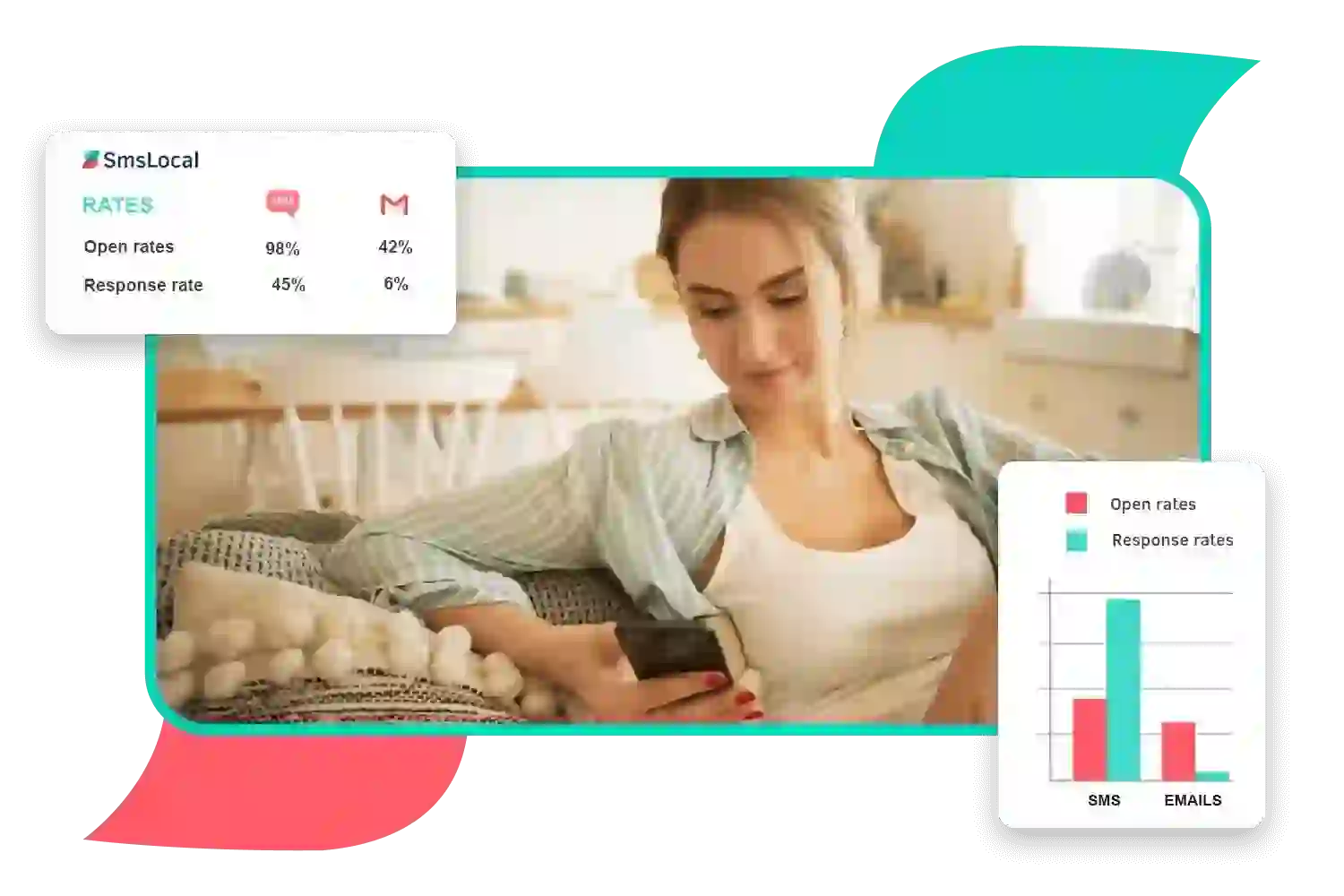
- smslocal – smslocal stands out as one of the top best bulk SMS software solutions for texting from a computer. It offers a powerful and easy-to-use bulk SMS platform with unlimited SMS capabilities. smslocal enables sending SMS blasts to unlimited contacts directly from the computer.
- SendPulse – SendPulse provides robust bulk SMS messaging features like automation workflows and contact management tools. However, it has limitations on contacts and lacks the discounts of smslocal.
- SimpleTexting – SimpleTexting allows decent bulk SMS capabilities from a computer with basic contact management options. It is fairly easy to use but lacks smslocal’s full range of features.
- Mailchimp – Mailchimp is primarily an email marketing platform with only limited SMS capabilities for texting campaigns. It does not specialize in bulk SMS like smslocal.
- Twilio – Twilio offers a pay-as-you-go bulk SMS API platform which requires development work to leverage for texting. It lacks smslocal’s purpose-built bulk SMS specialization.
| Software | Bulk SMS Capabilities | Discounts Available | Cost per SMS |
|---|---|---|---|
| Mailchimp | Up to 1000 SMS/month | No discounts | $0.10/SMS |
| SendPulse | Unlimited SMS | 10% off sometimes | $0.08/SMS |
| smslocal | Unlimited SMS | 25% off regularly | $0.006/SMS |
| SimpleTexting | Pay as you go model | Rare promotions | $0.05/SMS |
| Twilio | Pay as you go model | No discounts | $0.01/SMS |
However, MySMS only works on Windows currently. Support for Mac, web and mobile browsers is limited.
Why Choose SMSLocal?
SMSLocal provides complete Texting from Your Computer, laptop or device via our web app. With SMSLocal you get:
- Texting from Windows, Mac, Linux, iOS and Android devices
- Deep feature set including group messaging, auto replies, scheduling and more
- Global SMS reach to over 240 countries and territories
- An easy-to-use unified platform for all your messaging
- Dedicated support from our customer success team
Unleash the Power of Text messaging apps for PC
SMSLocal provides Texting from Your Computer through our web app. With SMSLocal you get:
- Cross-platform support – Text from Windows, Mac, Linux, Android, iOS and more
- Killer features – Group messaging, shared phone numbers, auto replies, scheduling and much more
- Global reach – Send texts to over 240 countries and territories
- Centralized platform – All messaging in one place via our web app
- Reliable delivery – Industry-leading deliverability rates worldwide
Optimize Workflows Via Text Apps For Computer
SMSLocal makes it easy to coordinate, collaborate and communicate via texting from your computer
- Streamline project management through texting
- Enable fast communication between distributed teams
- Improve customer service response times
- Send appointment reminders, alerts and notifications
- Coordinate events and schedules via text
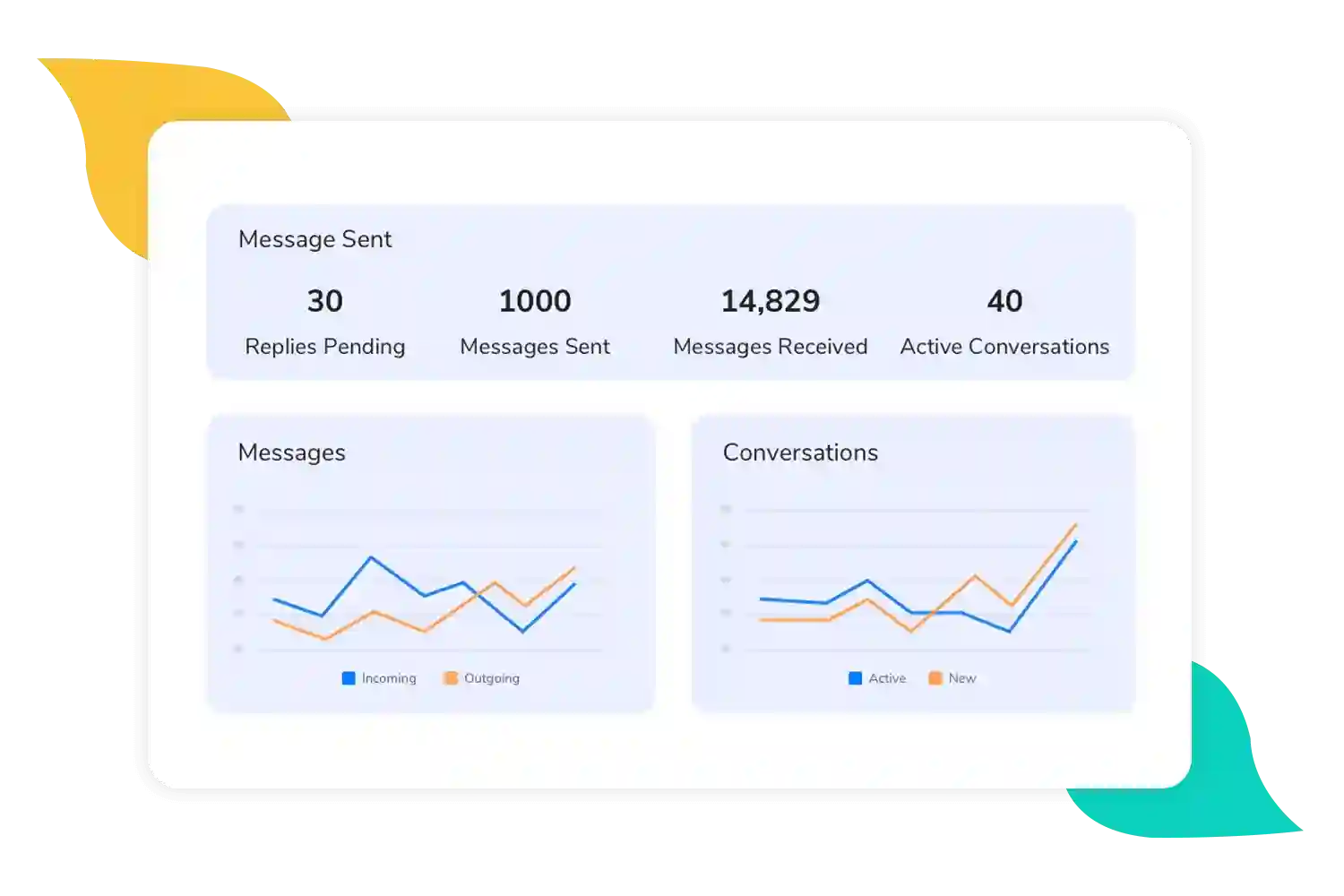
Streamline Your Work with Robust Text Messaging
SMSLocal delivers the most powerful and flexible text messaging solution for desktops and web access. With SMSLocal, you can coordinate via text from anywhere, on any device, through an intuitive centralized platform.
Simplify your workflows and enable your team to collaborate via text seamlessly through SMSLocal. Sign up for a free trial today.
Conclusion
While there are many Internet texting options, the apps discussed in this article are some of the most popular and user-friendly. Each app has unique features and benefits, making it suitable for different preferences and needs. Whether you prefer a desktop app or a web-based option, there is an app out there that will meet your needs.
So why try one of these Texting from Your Computer apps today? Stay connected with your friends and loved ones quickly from wherever you are.