
 English
In today’s fast world, talking quickly is important. iPhone users can send many texts at once. This makes talking to lots of people easy.
This guide will show you how to do this. You’ll learn how to send texts to many people at once. You’ll also see how to use special apps for sending lots of messages.
Key Takeaways
- Mass texting on iPhone can be accomplished through the built-in Messages app.
- Group texts allow communication with multiple contacts at once.
- Third-party apps can enhance the ability to send bulk messages effectively.
- Understanding group messaging features can simplify communication.
- Sending mass texts can save time and improve information dissemination.
How to Send a Mass Text on iPhone?
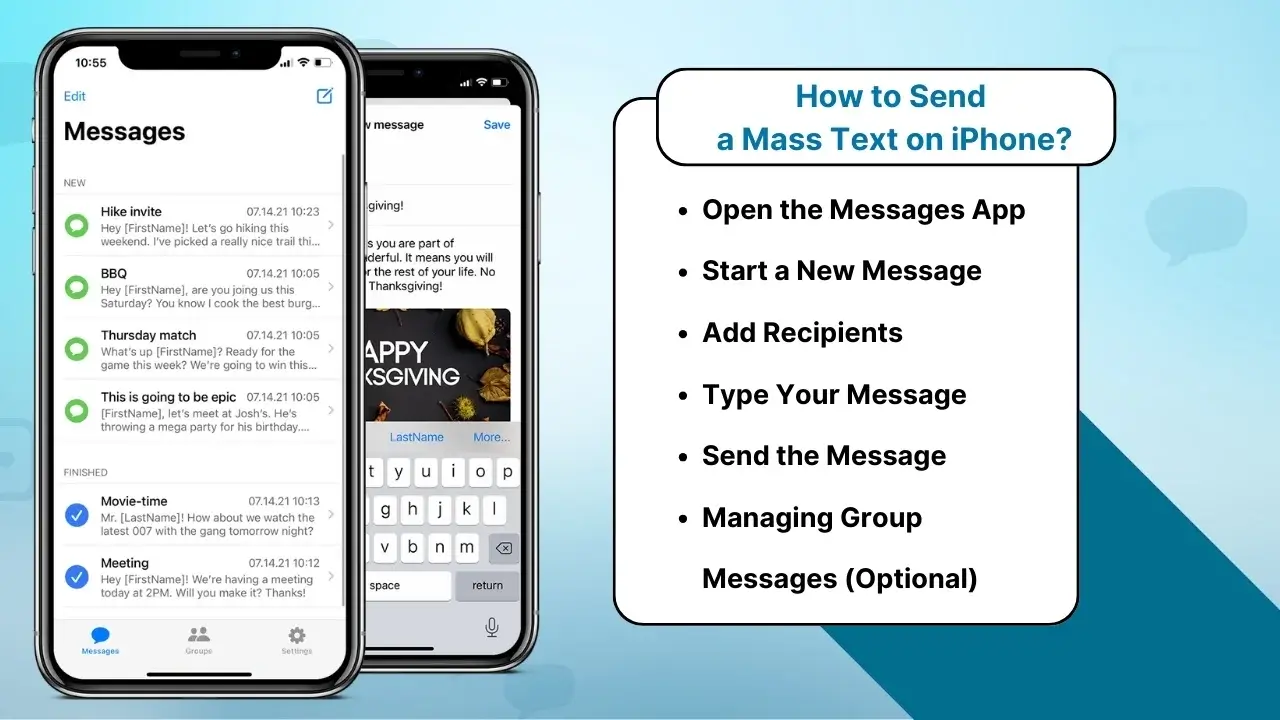
Sending a mass text on an iPhone is straightforward, but there are a few important steps to follow to ensure everything goes smoothly. Here’s how you can send messages to multiple people without using third-party apps:
Step 1: Open the Messages App
Start by opening the Messages app on your iPhone. This is the built-in messaging app that you’ll use for texting.
Step 2: Start a New Message
Tap the compose button (the square with a pencil icon) located in the top-right corner of the screen.
Step 3: Add Recipients
In the “To:” field, type the names or phone numbers of the people you want to send the mass text to. Alternatively, tap the “+” icon to select contacts from your address book.
- If you’re sending a group message, you can add as many recipients as you want.
- If you’re using iMessage, you can also include people who are on other Apple devices.
Step 4: Type Your Message
Write the message you want to send to everyone in the text field. This could be an announcement, a reminder, or any type of mass communication.
Step 5: Send the Message
Once you’re happy with your message, tap the send button (the blue arrow). The message will be sent to all recipients at once.
Step 6: Managing Group Messages (Optional)
If you’re sending a group text, iPhone will automatically create a group chat. Everyone in the group can reply to the message, and their responses will be visible to the entire group.
- Note: If you want to stop replies from everyone, go to the top of the message thread and tap on “info”. From there, you can turn off group messaging or mute notifications.
Types Of Mass Text Messages
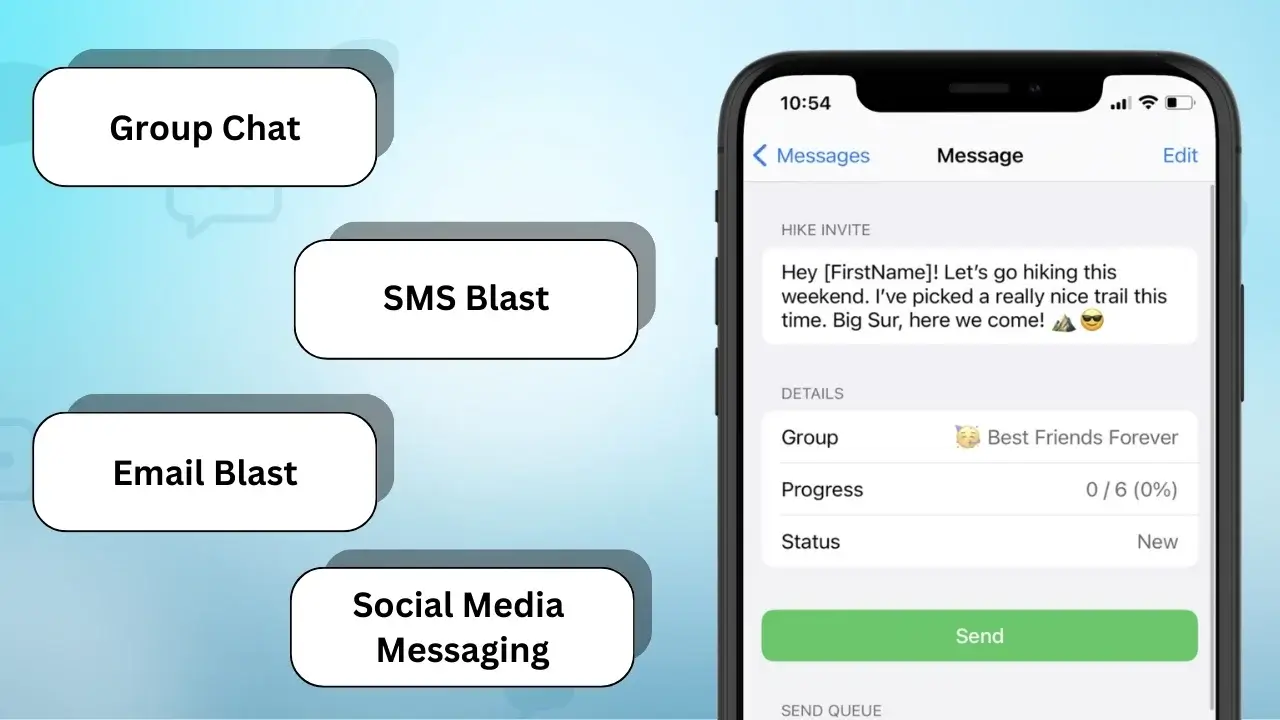
It’s key to know the different types of mass messages for good iPhone communication. Each type has its own use and meets different needs. This makes it easy to share info in many ways.
Group Chat
A group chat lets many people talk in one place. It’s great for quick chats and teamwork. It’s perfect for planning or sharing news with a group.
SMS Blast
SMS blasts send one message to lots of people at once. They’re good for quick announcements or deals. This way, everyone gets the message fast, without a long talk.
Email Blast
Email blasts are for those who like emails more than texts. They let you send more info and files. It’s a smart pick for reaching out to people who like emails.
Social Media Messaging
Social media messaging is getting more popular. Services like WhatsApp and Facebook Messenger make it easy to share. They’re great for quick messages and sharing photos or videos.
You may also know:
Send SMS Messages on iPad: Understanding the Basics
How to Send Mass Text Individually on iPhone
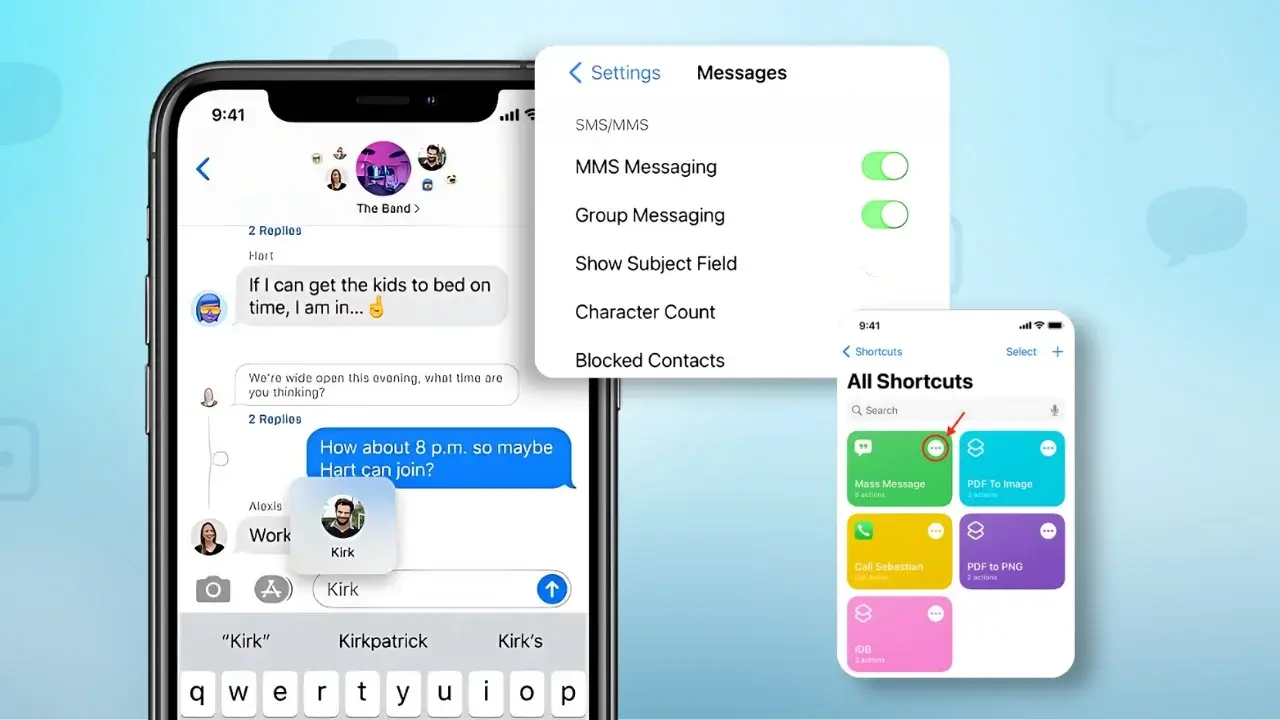
Sending messages one by one on an iPhone adds a personal touch. It helps avoid the issues of group messaging. Knowing how to send a mass text on iPhone makes communication better and more meaningful.
Here’s how to send a mass texts individually:
- Open the Messages app on the iPhone.
- Tap the compose button in the upper right corner.
- Start typing the name of the first contact in the “To:” field. Select the contact from the suggestions.
- Type your message in the text input area.
- Hit send to deliver the message.
- Repeat the process for each contact you wish to reach, ensuring that the recipient list remains confidential.
This method lets you send personalized messages to many people. By choosing each contact individually, you can make messages that fit each person’s needs. It keeps your messages private and professional, while still getting your point across.
Managing Group Text Conversations on iPhone
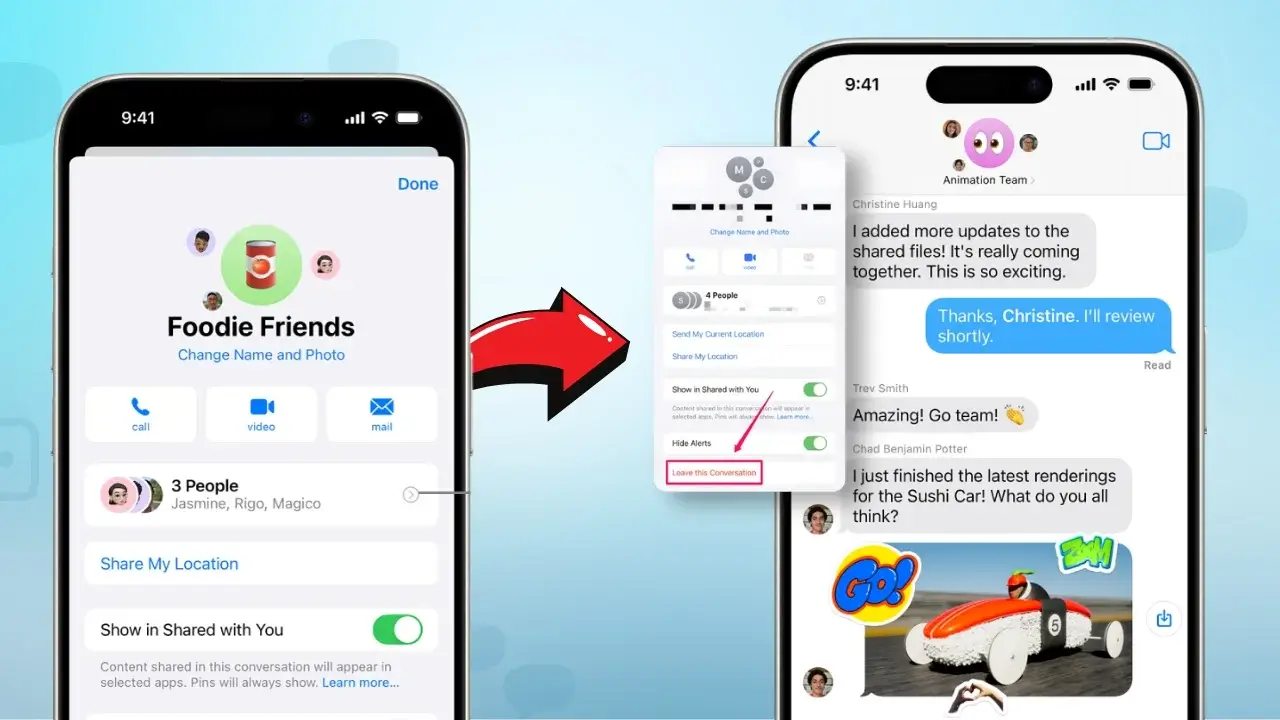
To manage group text conversations on iPhone well, you need to know how to use the iphone group text feature. This feature makes talking to many people easy and keeps talks organized. Here are some tips for handling these chats:
- Muting Notifications:If a group text on iphone gets too much, you can mute notifications. This stops constant alerts, letting you check messages when you want.
- Removing Members:Sometimes, you might need to take people out of the chat. This helps keep talks focused and relevant to those who are really involved.
- Responding Appropriately: Being polite in group chats is important. Answering specific comments keeps things clear. Using the “reply” function keeps messages on track and avoids going off-topic.
Keeping things organized is key in group chats. Using iPhone features can make talking better without overwhelming everyone. Good management makes group texts more fun and useful.
| Feature | Description | Benefits |
|---|---|---|
| Muting Notifications | Silences alerts for a specified period or until manually unmuted. | Reduces distraction from continuous messaging. |
| Removing Members | Removes individuals from the group, preventing them from receiving further messages. | Keeps discussions relevant to current participants. |
| Replying to Specific Messages | Allows users to respond to particular comments within the chat. | Keeps conversations focused and organized. |
How to Send a Mass Text on iPhone Without Creating a Group
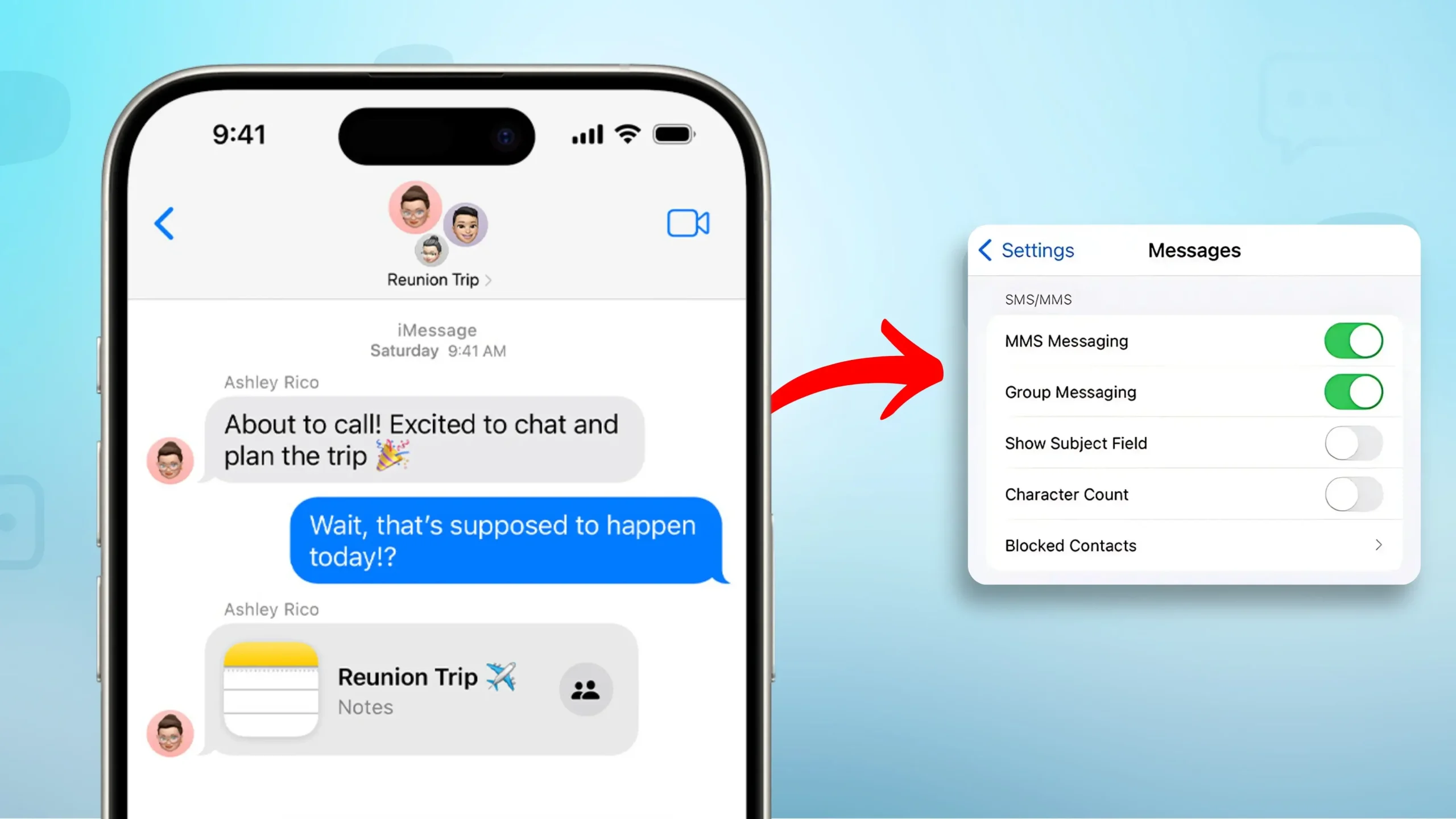
Sending many texts at once on an iPhone is easy and keeps talks private. Each message is seen as a personal chat, not part of a group. Here’s how to send a mass text on iPhone step by step, using your iPhone’s features.
Step by step guide
- Open the Messages app on your iPhone.
- Compose a new message by tapping the New Message icon.
- In the recipient field, type the first person’s phone number or select it from your contacts.
- Write your message in the text box above the keyboard.
- Tap the send button to deliver the text.
- To send to another recipient, create a new message by returning to the main Messages screen.
- Repeat steps 3 through 5 for each individual you wish to contact.
To make sending many texts faster, use the copy and paste feature. After writing your message, copy it. Then, paste it into new messages for each person. You can also use the iPhone’s text replacement settings for quicker typing. These tips make sending lots of texts easier.
How to Send a Mass Text on iPhone Without Group Message
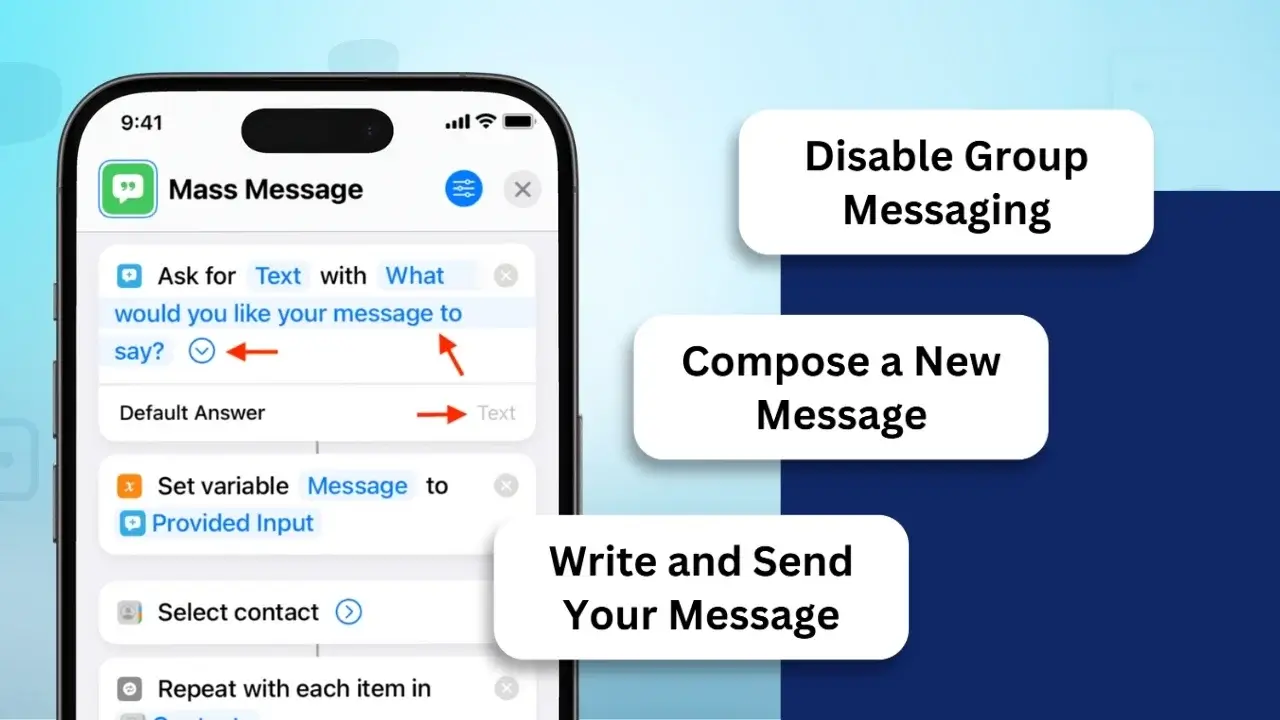
Sending a text blast on your iPhone privately is simple. How to send a mass text on iPhone, create individual messages for each recipient, avoiding group messages. This keeps contacts private and ensures they don’t see each other’s information.
Disable Group Messaging:
- Go to Settings > Messages and turn off Group Messaging.
Compose a New Message:
- Open the Messages app, tap the Compose button, and add recipients individually.
Write and Send Your Message:
- Example: “Hi [First Name], a reminder about Friday’s 3 PM meeting. Let me know if you have questions!”
- Each recipient will receive the message as a separate text.
Using the Notes app is a great way to send many texts at once. Here’s how to do it:
- Open the Notes app and write your message. This will be your template for sending many texts.
- Copy the message from the Notes app.
- Open the Messages app and pick the person you want to text.
- Paste the message into the message field.
- Do this for each person you want to text.
This method keeps messages private. It makes sure each person only sees your message. Or, you can use a third-party app for sending texts. These apps make it easy to send many messages without showing them all at once.
| Method | Privacy Level | Ease of Use | Recommended For |
|---|---|---|---|
| Notes App | High | Moderate | Personal Messages |
| Messaging App | High | High | Business Communication |
| Third-Party Apps | Moderate | Easy | Bulk Messaging |
Each method has its own benefits. They help you send texts in different ways. Knowing how to send many texts at once makes talking to lots of people easier.
Text Multiple People Individually on iPhone
Learning to text many people one by one on an iPhone can really help. It’s different from sending the same message to everyone at once. This way, you can talk to each person in a way that feels special to them.
To begin, it’s important to quickly find the contacts list. You can use the Contacts app or the Messages app to pick several contacts for individual messages. Here are some tips to make texting better:
- Use the search function to find people fast.
- Make each message special by thinking about what each person likes or what you’ve talked about lately.
- Keep your messages short and clear so everyone gets your point.
When you text many people, it’s key to be clear. A good message grabs attention and makes people want to reply. Here’s a table that shows how to message well:
| Strategy | Description | Impact on Engagement |
|---|---|---|
| Personalization | Make messages special for each person | More likely to get a reply |
| Timing | Send messages when they’re most likely to be seen | Gets more reactions |
| Conciseness | Keep messages short and to the point | People are more likely to remember |
Using these tips can really make texting many people better. By being clear and relevant, you can get more people to respond. This makes your efforts at texting many people more successful.
How to Send a Mass Text to all Contacts on iPhone
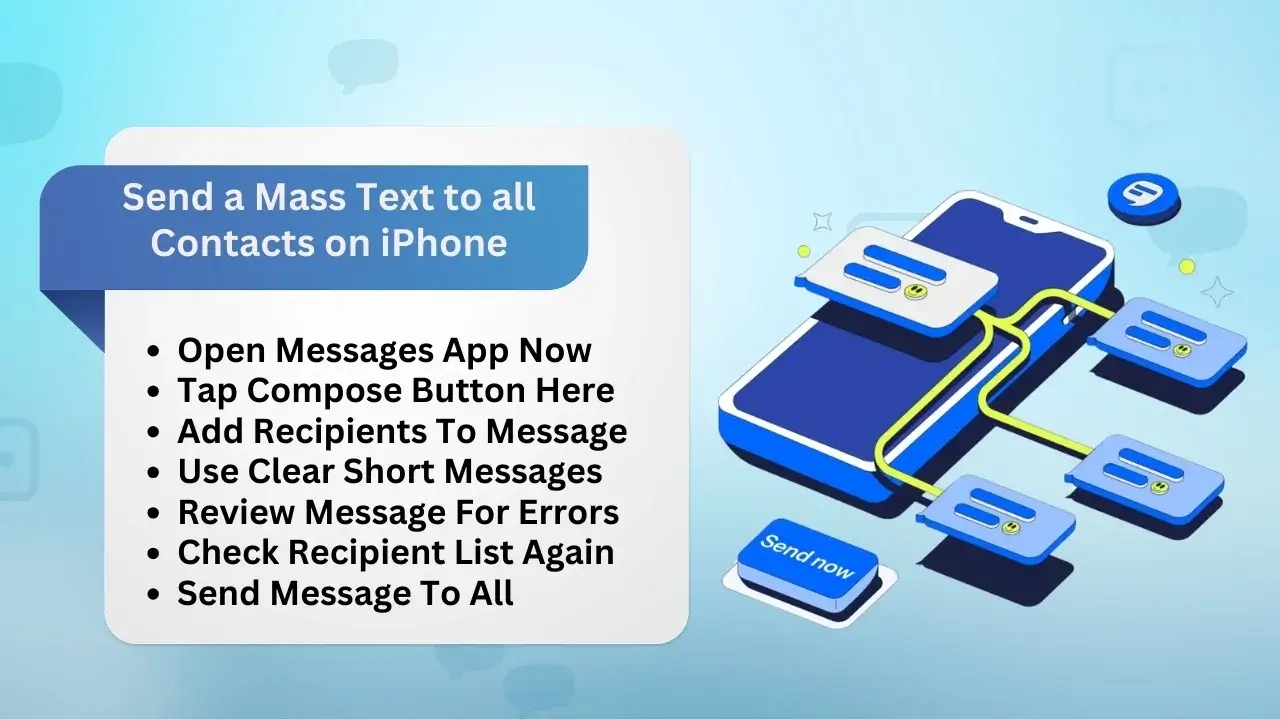
Mass texting on iPhone lets you talk to many contacts at once. It’s great for big events or work updates. Here’s how to send texts to all your iPhone contacts.
Steps to follow
- Open the Messages app on the iPhone.
- Tap the compose button in the upper right corner to start a new message.
- In the “To:” field, start typing names or tap the plus icon to pick from your contacts.
- For big groups, use third-party apps made for bulk messaging.
- Write your message clearly and short to get people’s attention.
- Check the message to make sure it’s right and for the right people.
- Send the message to all your contacts, knowing there might be limits.
Using good practices helps people read your messages. Clear and short texts are best. This way, you can easily update your friends and family.
Send Bulk Text Messages from Your iPhone to Business Clients
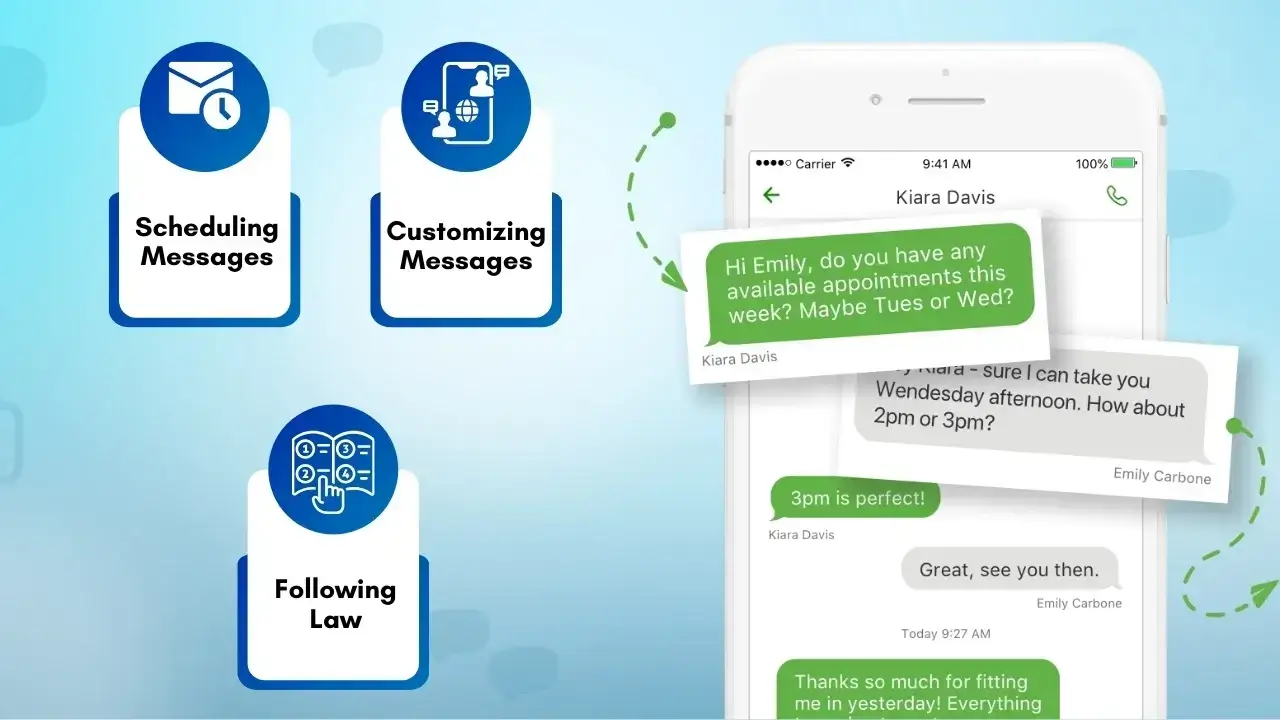
Sending lots of text messages from an iPhone to business clients is a great way to talk to many people at once. It makes communication better and helps you connect with more people. With the right tools, you can send messages to lots of people quickly.
Using special business texting apps é melhor do que as mensagens padrão do iPhone. Esses aplicativos permitem que você gerencie bem suas mensagens. Eles têm recursos como:
- Agendando mensagens para os melhores horários para envio
- Personalizando mensagens para cada pessoa
- Seguindo a lei para envio de textos
Usar um iPhone para enviar muitas mensagens de texto traz muitos benefícios. Você pode alcançar mais pessoas e ver o desempenho de suas mensagens. Isso ajuda você a saber se suas mensagens estão funcionando.
Resumindo, usar um serviço profissional de mensagens de texto para enviar muitas mensagens pode realmente ajudar o seu negócio. Escolher o serviço certo significa que suas mensagens serão pontuais, relevantes e seguirão as regras.
| Feature | Mensagens padrão do iPhone | Plataforma de mensagens de texto empresariais |
|---|---|---|
| Envio em massa | Limitado | Capacidade de alto volume |
| Personalization | Básico | Personalização Avançada |
| Ferramentas de conformidade | Não | Sim |
| Opções de agendamento | Não | Sim |
| Análise | Não | Relatórios detalhados |
Como selecionar a melhor ferramenta para envio de textos em massa
Escolher a ferramenta certa para enviar textos em massa é fundamental para uma boa comunicação. Existem muitas opções, por isso é importante compará-las. Um bom serviço torna o envio de textos em massa fácil e eficiente.
Etapas para encontrar a melhor ferramenta para mensagens de texto em massa
Avalie a facilidade de usoProcure ferramentas com interface simples e intuitiva.
- Um design fácil de usar ajuda você a começar rapidamente, sem precisar de treinamento extenso.
Avalie as opções de preços
- Compare diferentes planos de preços oferecidos por várias ferramentas.
- Selecione um que esteja de acordo com seu orçamento e requisitos específicos.
Verifique a escalabilidade
- Escolha uma ferramenta que possa lidar com o crescimento à medida que suas necessidades aumentam.
- Certifique-se de que funciona perfeitamente para grupos pequenos e grandes.
Considere os recursos de integração
- Procure serviços que se integrem a outras ferramentas como CRM, plataformas de e-mail ou análises.
- A integração suave aumenta a eficiência da comunicação.
Leia comentários
- Leia avaliações e depoimentos de usuários para compreender a confiabilidade e o desempenho da ferramenta.
- Considere as experiências de outras pessoas para tomar uma decisão informada.
Seguindo essas etapas, você pode escolher a melhor ferramenta para suas necessidades de comunicação.
Conclusão
O envio de textos em massa no iPhone tem muitas maneiras de atender a diferentes necessidades. Você pode usar bate-papos em grupo para conversas divertidas ou mensagens SMS para mensagens sérias. Conhecer o método certo ajuda você a alcançar melhor.
Pense para quem você está enviando e o que está dizendo. Isso ajuda você a escolher a melhor forma de enviar mensagens. Isso garante que sua mensagem seja transmitida bem.
Experimente as dicas deste artigo para uma melhor comunicação em massa. Usar as ferramentas e métodos certos pode tornar suas mensagens mais fortes. Isso ajuda a construir melhores conexões e melhora a forma como as pessoas respondem a você.
Alcance seu público de forma rápida e eficaz com as soluções de mensagens em massa do SMSLocal.
Perguntas frequentes
Para enviar uma mensagem de texto em massa sem criar uma conversa em grupo: • Abra o aplicativo Mensagens. • Comece uma nova mensagem tocando no ícone de escrever. • Digite o número ou nome de cada destinatário no campo “Para:”. • Escreva sua mensagem. • Envie e cada destinatário receberá o texto individualmente.
Você pode enviar vários textos para destinatários diferentes seguindo estas etapas. Como enviar vários textos no iPhone? Basta abrir o aplicativo Mensagens, digitar sua mensagem e enviá-la para cada destinatário individualmente, sem criar um bate-papo em grupo. • Abrindo o aplicativo Mensagens. • Digitando a mensagem uma vez. • Copiar o texto e colá-lo em conversas separadas com contatos individuais.
Para enviar textos individuais para várias pessoas: • Vá para Configurações > Mensagens. • Desative “Mensagens em grupo”. • Abra o aplicativo Mensagens e redija sua mensagem. • Adicione vários destinatários ao campo “Para:”. • Envie a mensagem e cada pessoa a receberá em um texto separado.
Para mensagens de texto em massa: • Use um aplicativo de terceiros como SMSLocal, TextBlast ou ferramentas semelhantes projetadas para mensagens em massa. • Esses aplicativos permitem enviar mensagens personalizadas para vários destinatários com facilidade. • Baixe o aplicativo, carregue sua lista de contatos e siga as instruções do aplicativo para enviar sua mensagem.
Você pode enviar uma mensagem em massa por: • Abrindo o aplicativo Mensagens. • Adicionando todos os destinatários ao campo “Para:”. • Compondo sua mensagem. • Enviando a mensagem. (Certifique-se de que as mensagens em grupo estejam desativadas se você não quiser um bate-papo em grupo.)
• Abra Mensagens > Configurações > Mensagens e desative Mensagens em Grupo. • Redija sua mensagem no aplicativo Mensagens. • Adicione vários destinatários. • Envie e cada contato receberá o texto individualmente.