
 English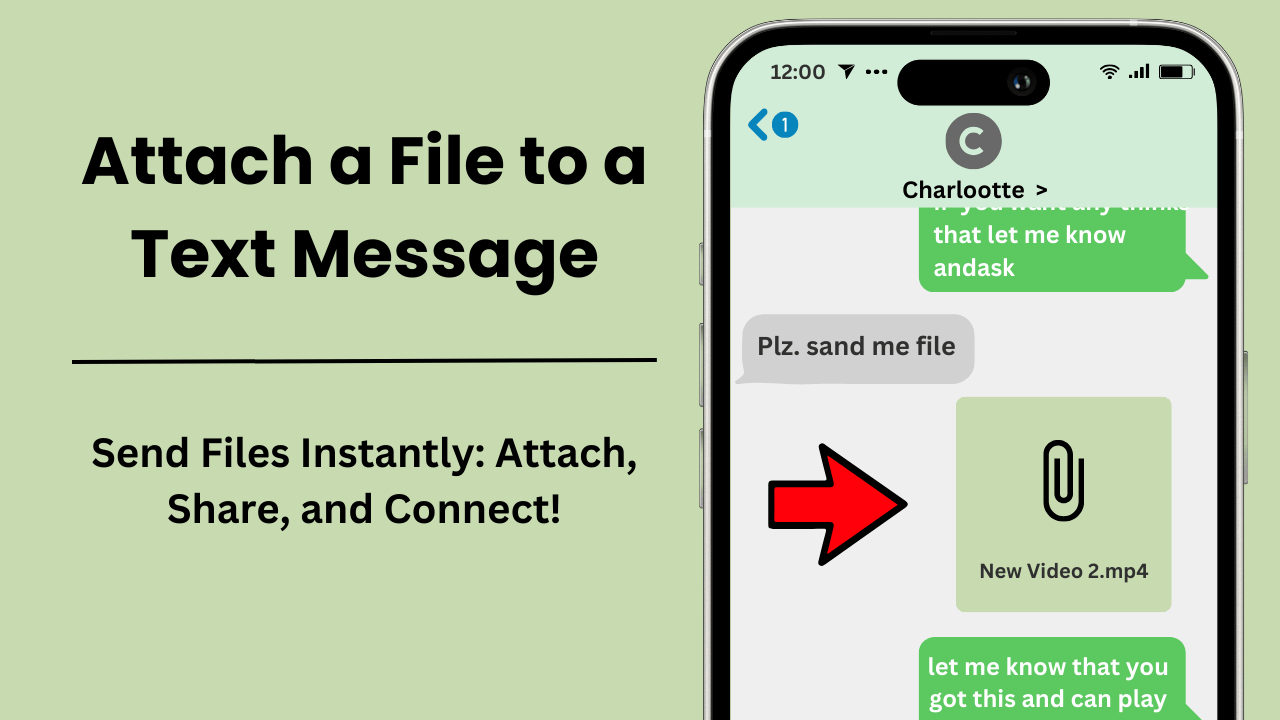
Attach a file to a text message allows you to send multimedia files such as images, documents, videos, and audio clips directly through text messaging apps. This process enhances communication by enabling users to share essential information within their messages in real-time. With the advancements in mobile technology, this feature is more accessible and valuable than ever, transforming how individuals and businesses communicate.
重要なポイント:
- Convenience and Speed: Attaching files directly to a message eliminates the need for third-party apps or emails, providing a seamless communication experience.
- Wide File Support: Common file types for attachments include images (JPEG, PNG), videos (MP4, MOV), and documents (PDF, DOCX).
- File Size Limits: Messaging platforms impose file size limits, with most carriers capping files between 300KB and 1MB for MMS messages.
- Enhanced Productivity: File attachments save time and streamline workflows, making them especially valuable for business communication.
- Security Considerations: Be mindful of privacy by sending files only to trusted recipients and ensuring compatibility with the recipient’s device.
What is Attaching a File to a Text Message?
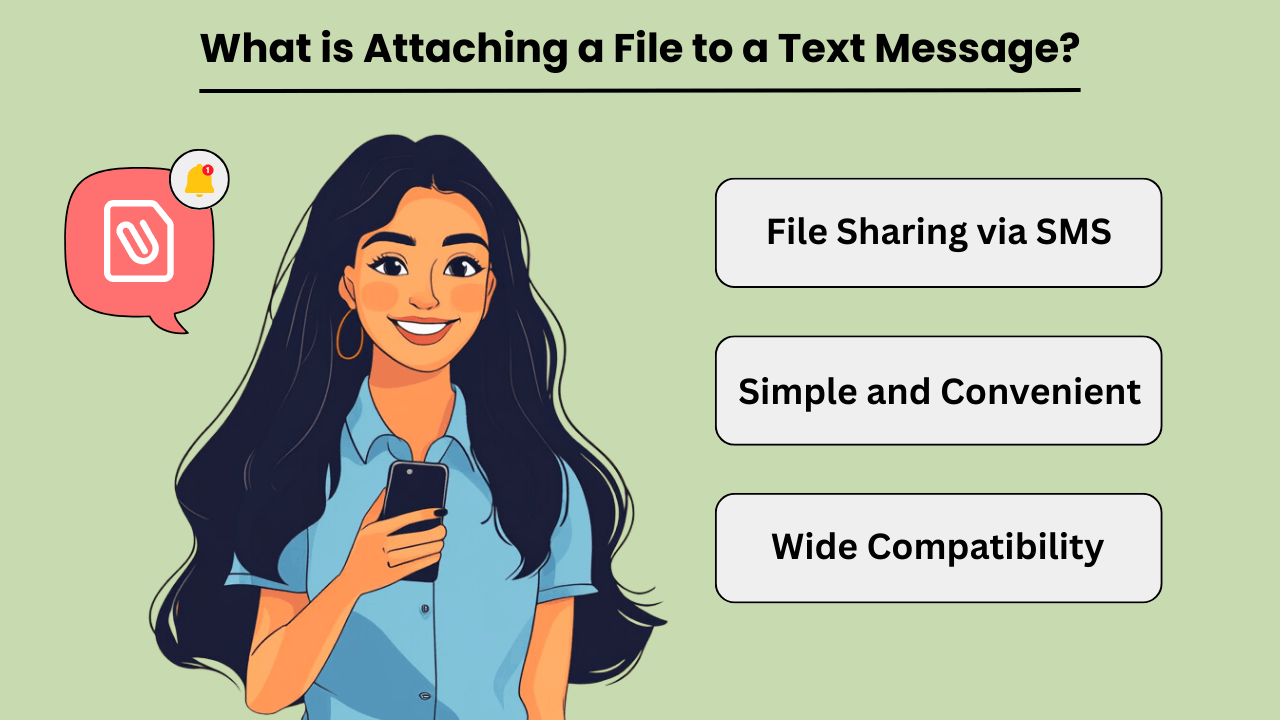
Attaching a file to a text message refers to the process of sending various types of files—such as images, documents, videos, or audio files—through a text messaging platform. This functionality enhances communication by allowing users to share important documents or multimedia content directly within their text conversations.
Benefits of File Attachments in Text Messaging
File attachments in text messaging offer a range of benefits that enhance user experience and communication efficiency. One key advantage is the convenience of sharing files without switching between different apps or platforms. For example, sending a document or photo directly through a text message eliminates the need for email or cloud services, simplifying the process. Additionally, file attachments allow for real-time sharing and immediate access to the content, which is particularly useful for time-sensitive information.
Common File Types for Text Message Attachments
When attaching files to テキストメッセージ, users can choose from various file types depending on their needs. Common file types include images (JPEG, PNG), documents (PDF, DOCX), videos (MP4, MOV), and audio files (MP3). However, If your file is not in one of these formats, you can easily convert it using the online converter before attaching it to your message. Each file type serves a specific purpose and is compatible with most messaging platforms. For instance, images and videos are ideal for sharing visual content, while documents and audio files are useful for exchanging textual or audio information.
Tips for Managing File Attachments in Text Messaging
To effectively manage テキストメッセージ attachments, users should consider a few key tips. First, ensure that the file size is within the limits set by the messaging platform, as large files may not be sent or could impact the performance of the message. Second, use clear and descriptive filenames to make it easier for the recipient to identify and access the attached file. Lastly, be mindful of privacy and security by only sending files to trusted recipients and avoiding sensitive information in unsecured messages.
Attaching files to text messages enables convenient and efficient sharing of multimedia content and documents. This feature enhances communication by allowing real-time sharing and immediate access to files, making it ideal for personal and professional use.
How Do I Attach Pictures and Files to a Text Message?
How to attach files to a text message? Simply scan the QRコード and follow these easy steps
- Open a new message and click on the attachment button.
- Choose your desired file format in the new window.
- Next, pick the picture or file (depending on your operating system) you want to send.
- Insert your recipient and text, and there you go!
Please note: If you use an iPad, you are limited to attaching pictures only.
You can attach up to 4 files per message, with a maximum size of 10 MB for each picture or file. These limits ensure smooth delivery of text message attachments without overloading the messaging platform.
How Does Attaching a File to a Text Message Work?
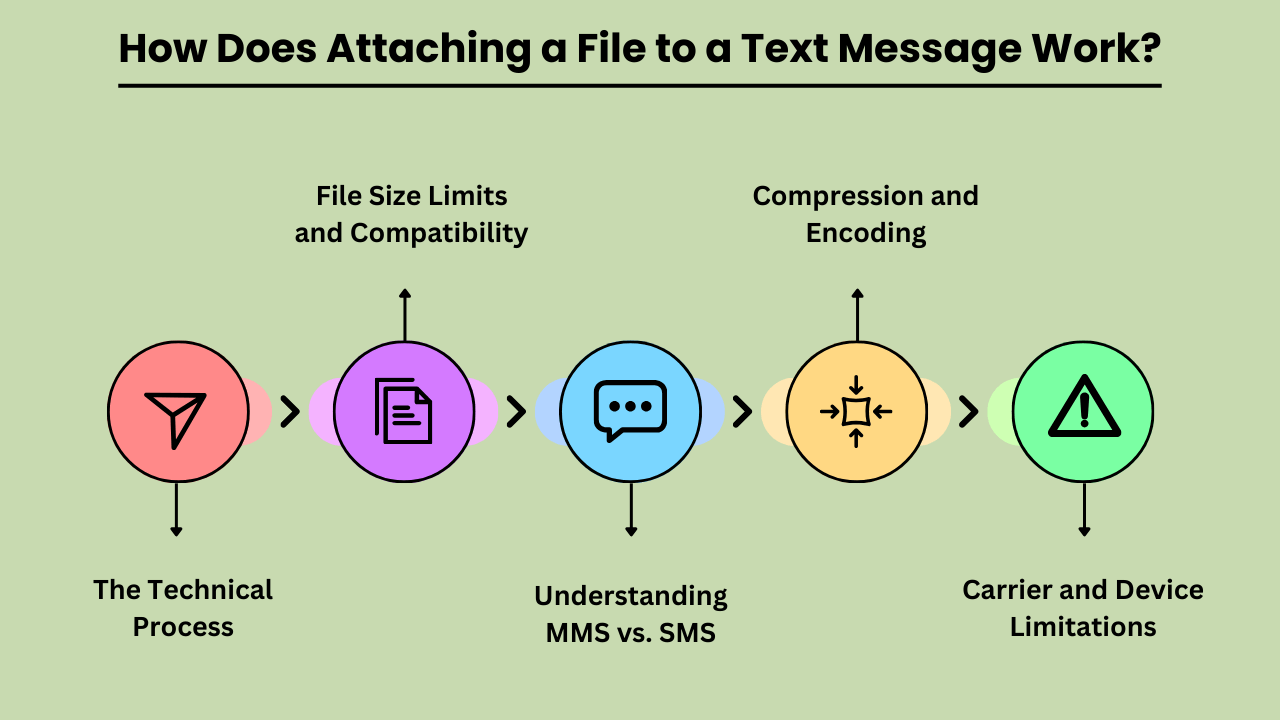
How to send a file through text messageinvolves several technical processes to ensure the file is sent and received correctly. Traditional SMS (Short Message Service) only supports text, so sending files requires MMS (Multimedia Messaging Service), which extends SMS capabilities to include multimedia content.
The Technical Process of Attaching a File to a Text Message
Attaching a file starts when the user selects the file from their device and initiates the process within their messaging app. The file is then encoded into a format suitable for MMS transmission. This encoding includes adding metadata about the file, such as its type and size. The encoded message is then transmitted to the carrier’s MMS server, which handles the delivery to the recipient’s MMS server.
File Size Limits and Compatibility
QUERY LENGTH LIMIT EXCEEDED. MAX ALLOWED QUERY : 500 CHARS
Understanding MMS vs. SMS
MMS (Multimedia Messaging Service) and SMS (Short Message Service) serve different purposes in text communication. SMS is limited to text only, while MMS supports multimedia files such as images, videos, and audio clips. When attaching a file, the message is converted into an MMS format, which can handle these larger and more complex data types. This conversion is necessary because traditional SMS lacks the capability to transmit files beyond simple text.
Compression and Encoding
File compression and encoding are essential for sending files via MMS. Compression reduces the file size to meet carrier limits, while encoding ensures the file is transmitted correctly over the network. This process involves converting the file into a compatible format and potentially reducing its quality to fit size restrictions. Decoding is then performed on the recipient’s device to restore the file to its original state.
Carrier and Device Limitations
Carrier and device limitations play a significant role in file attachment processes. Different carriers have varying file size limits and supported formats, which can affect how files are sent and received. Additionally, not all devices handle multimedia messages in the same way, potentially leading to compatibility issues. It’s important to consider these factors when attaching files to ensure successful delivery and proper viewing.
The Advantages of Attaching Files to Text Messages
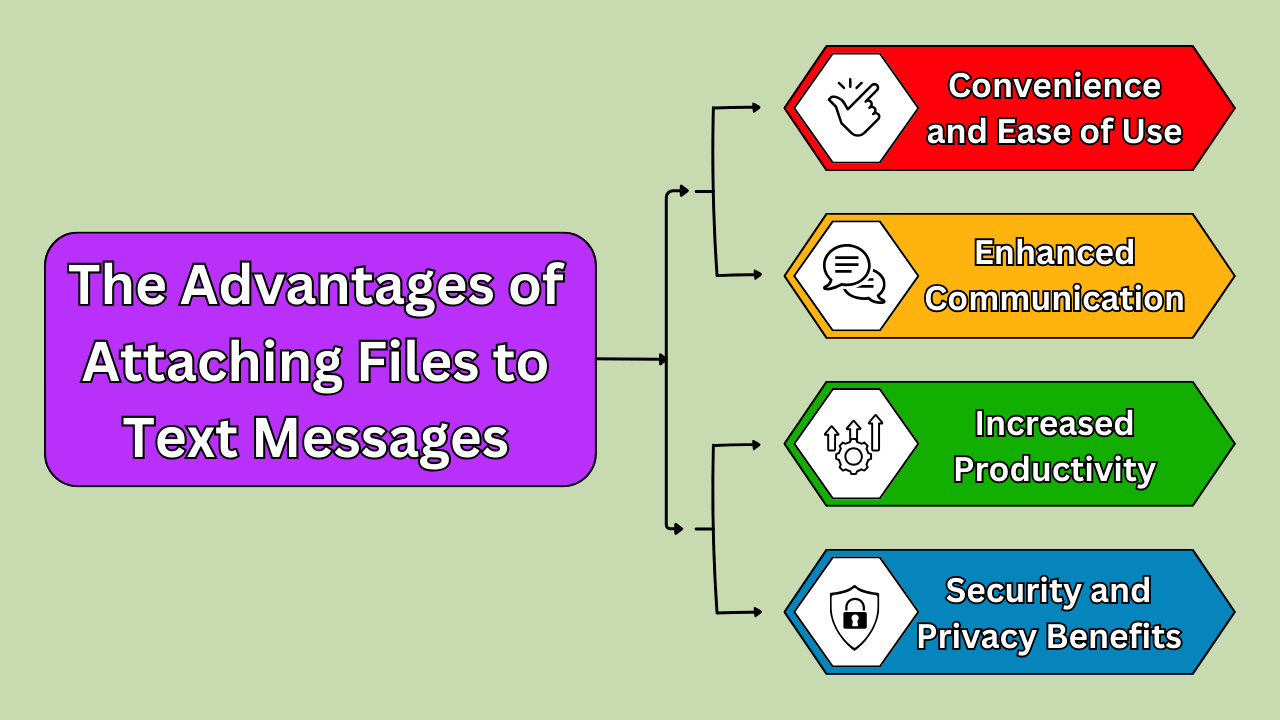
Attaching a file to a text message offers numerous advantages, transforming how we communicate and collaborate. An AI call assistant simplifies collaboration by enabling effortless multimedia file sharing via text messages and AI phone callsQUERY LENGTH LIMIT EXCEEDED. MAX ALLOWED QUERY : 500 CHARS
Convenience and Ease of Use
QUERY LENGTH LIMIT EXCEEDED. MAX ALLOWED QUERY : 500 CHARS
Enhanced Communication and Collaboration
Files attached to text messages significantly enhance communication and collaboration. For professional settings, this means that team members can quickly share reports, presentations, or spreadsheets, making it easier to coordinate and make decisions in real time. Implementing services for infrastructure management QUERY LENGTH LIMIT EXCEEDED. MAX ALLOWED QUERY : 500 CHARS
Time-Saving and Increased Productivity
QUERY LENGTH LIMIT EXCEEDED. MAX ALLOWED QUERY : 500 CHARS
Security and Privacy Benefits
QUERY LENGTH LIMIT EXCEEDED. MAX ALLOWED QUERY : 500 CHARS
Choosing the Best Method for Attach a File to a Text Message
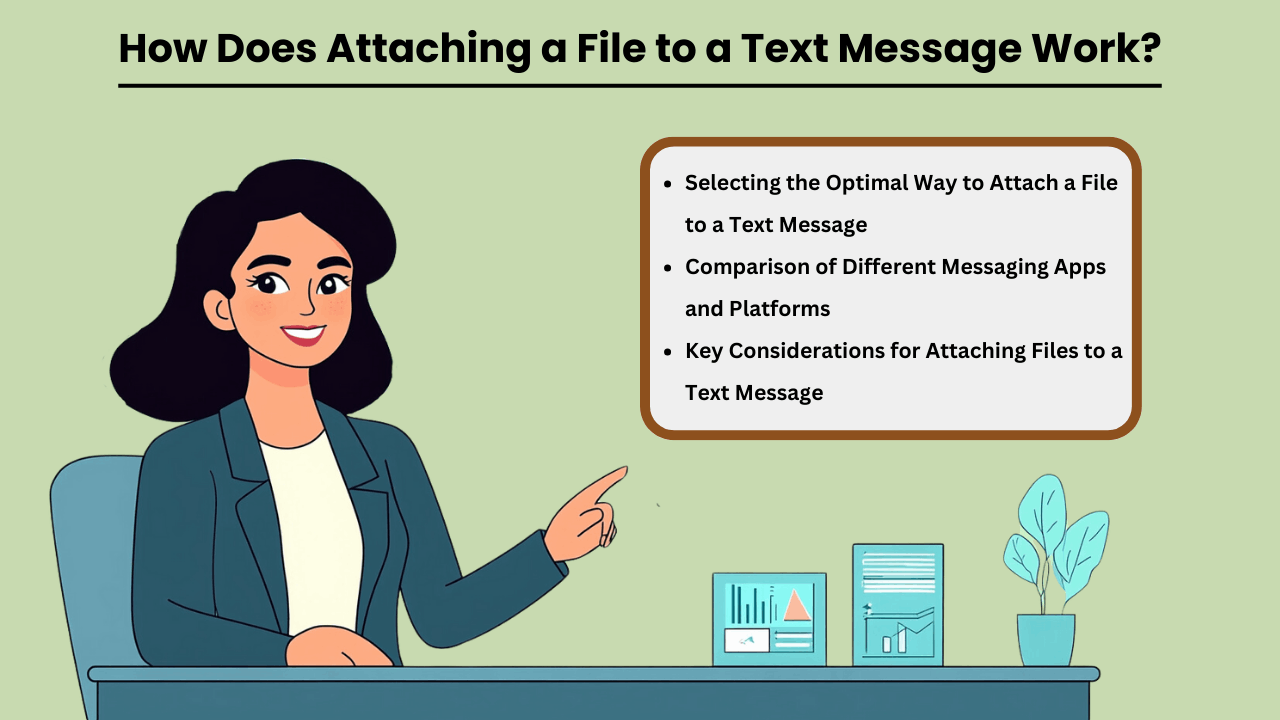
In today’s digital age, the ability to send files via text messages has become a vital aspect of personal and professional communication. Whether you are sharing documents, images, or multimedia files, selecting the best method for how to attach a file to a text message can make a significant difference in terms of convenience and efficiency. Factors such as file size, the platform being used, and the type of file all play a role in determining the most suitable method. Additionally, ensuring that the recipient can open the file without any compatibility issues is crucial for a seamless experience. Understanding how different methods work can help you make informed decisions and improve your messaging experience.
Selecting the Optimal Way to Attach a File to a Text Message
Different messaging platforms offer various ways to attach file to text messages, and knowing which one to use depends on the situation. Some apps, like WhatsApp or iMessage, allow for easy attachment of large files, while others, like standard SMS, may have restrictions on file size. Consider the file type and recipient’s device compatibility when choosing a method. Sending files over secure platforms can also protect sensitive information, so it’s essential to select the right platform for the task.
Comparison of Different Messaging Apps and Platforms
When comparing messaging apps, factors such as file size limits, ease of use, and security features should be considered. Apps like WhatsApp, iMessage, and Signal offer secure, end-to-end encrypted file sharing, while basic SMS may only support small files. Additionally, certain apps are better suited for multimedia or document sharing depending on their design. Understanding the limitations and strengths of each platform can help you choose the best one for your file-sharing needs.
Key Considerations for Attaching Files to a Text Message
When attaching files to a text message, file size, compatibility, and security are critical factors to consider. Large files may require using cloud storage links or compressing the file to fit the app’s limits. It is also important to ensure the file format is compatible with the recipient’s device. Finally, choosing secure platforms can safeguard your data from unauthorized access, ensuring that your attachments are delivered safely.
The Future of Attaching a File to a Text Message
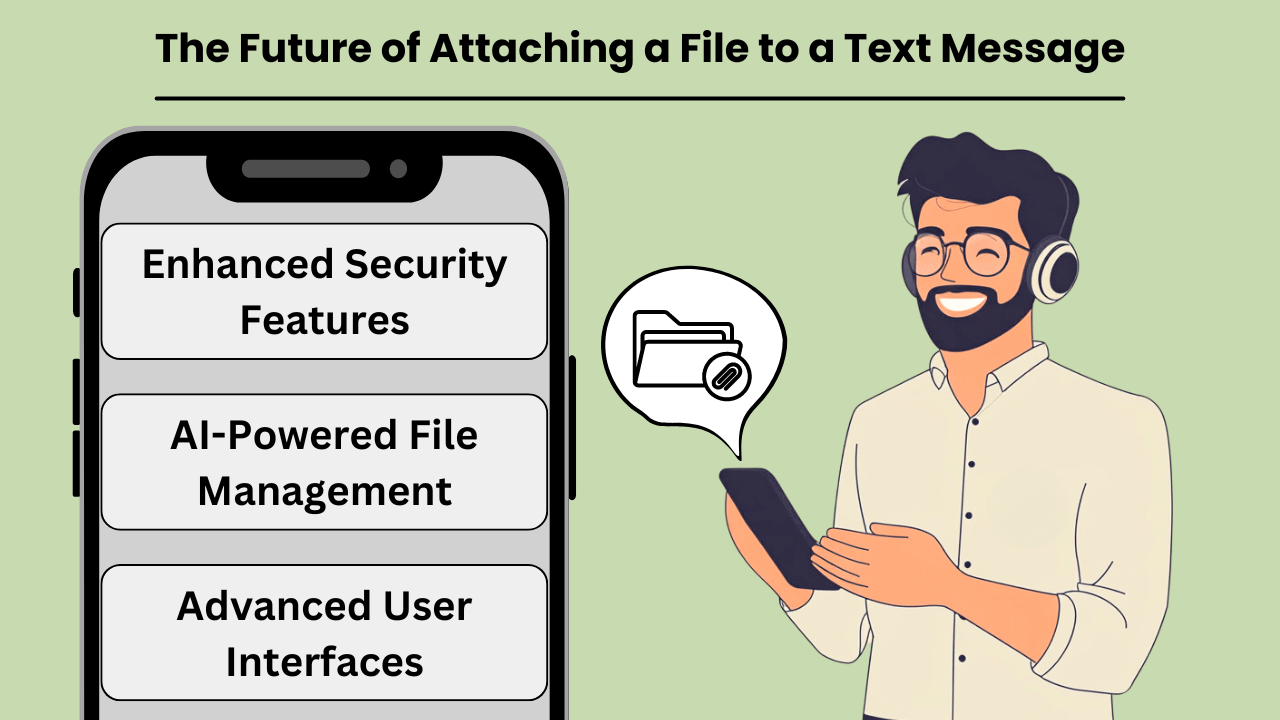
As communication technology evolves, the ability to attach file to text QUERY LENGTH LIMIT EXCEEDED. MAX ALLOWED QUERY : 500 CHARS multimodal AI continue to shape the way messaging platforms handle diverse content formats.
Emerging Trends and Technologies
QUERY LENGTH LIMIT EXCEEDED. MAX ALLOWED QUERY : 500 CHARS
Potential Impact on File Sharing and Communication
QUERY LENGTH LIMIT EXCEEDED. MAX ALLOWED QUERY : 500 CHARS
Predictions for the Future of Attaching a File to a Text Message
QUERY LENGTH LIMIT EXCEEDED. MAX ALLOWED QUERY : 500 CHARS
結論
QUERY LENGTH LIMIT EXCEEDED. MAX ALLOWED QUERY : 500 CHARS
Looking ahead, as file-sharing capabilities continue to evolve, we can expect even greater integration of cloud storage services and AI-powered messaging platforms that streamline how we share and access content. These advancements will allow for even more seamless experiences, ensuring that file attachments via text will remain an essential feature of both personal and professional communication in the future.
よくある質問
You can attach images, videos, documents, and audio files to text messages. Common formats include JPEG, PNG, MP4, PDF, and MP3.
File size limits vary depending on the messaging platform and carrier. Typically, MMS messages have a limit between 300KB and 1MB, but apps like WhatsApp or iMessage allow larger files.
No, SMS only supports text. To send files, you must use MMS or an app that supports multimedia messaging like WhatsApp, iMessage, or RCS.
Yes, it’s essential to ensure that files are sent securely and to trusted recipients. Using encrypted messaging platforms helps protect sensitive data.
If the recipient’s device doesn’t support the file format, they may not be able to open or view the file. It’s essential to ensure file compatibility before sending.