
 English
Messaggistica fluida: scopri le migliori app per inviare SMS dal tuo computer
Nell’era digitale di oggi, gli SMS sono diventati una delle forme di comunicazione più popolari. Secondo recenti statistiche, gli americani spendono in media 32 SMS al giorno.
Sebbene gli smartphone abbiano reso l'invio di SMS più semplice che mai, digitare su uno schermo piccolo può essere frustrante. Inoltre, solo a volte è conveniente o appropriato utilizzare il telefono per inviare SMS, ad esempio quando si è al lavoro o in un luogo pubblico.
Qui è dove la capacità di farlo SMS dal tuo computer torna utile. Utilizzando app desktop e basate sul Web, puoi facilmente e inviare e ricevere SMS in modo efficiente messaggi.
Le migliori app desktop per inviare SMS dal tuo computer
Per quanto riguarda gli SMS dal computer, le app desktop sono spesso l'opzione più affidabile poiché non si basano su una connessione Internet. Due dei più apprezzati app desktop per inviare SMS sono iMessage e i messaggi Android. iMessage: iMessage è un'app che consente agli utenti di inviare testi API SMS, foto, video e altri file tra dispositivi Apple.
Ha diverse funzionalità preziose, tra cui conferme di lettura, indicatori di digitazione e crittografia end-to-end per una maggiore privacy. Per utilizzare iMessage sul tuo computer Mac, devi avere installato macOS Catalina o versione successiva e accedere con il tuo ID Apple.
Messaggi Android: Messaggi Android (ora chiamato Messaggi Google) è un'altra delle migliori app per inviare SMS dal computer che consente agli utenti con dispositivi Android di inviare SMS dai propri computer. Inoltre, offre funzionalità come il supporto della messaggistica di gruppo, la funzionalità di ricerca dei messaggi e la pianificazione anticipata dei messaggi.
Sebbene sia iMessage che Messaggi Android offrano vantaggi unici per gli utenti che desiderano inviare messaggi dai propri computer tramite i propri smartphone; presentano anche alcuni inconvenienti. Ad esempio,
Le migliori app di messaggistica basate sul Web per computer
Se preferisci una soluzione basata sul Web per inviare SMS dal tuo computer, diverse app ti consentono di fare proprio questo. Due dei più apprezzati app basate sul Web per inviare SMS dal tuo computer sono MightyText e Pushbullet. MightyText: MightyText è un'app basata sul Web che si sincronizza con il tuo telefono Android per consentirti di inviare API SMS e ricevere messaggi di testo sul tuo computer.
Alcune funzionalità includono la pianificazione, l'invio di messaggi di massa API SMS e l'accesso alle foto dalla galleria del tuo telefono. Pushbullet: Pushbullet è un'altra app popolare che consente agli utenti di connettere il proprio smartphone e computer.
Ti consente di inviare messaggi di testo, collegamenti, file e notifiche API SMS dal tuo telefono direttamente al tuo computer. MightyText e Pushbullet offrono vantaggi unici per gli utenti che desiderano inviare messaggi dal proprio computer tramite lo smartphone, ma presentano anche alcuni inconvenienti.
WhatsApp Web: un’opzione di nicchia
Per coloro che utilizzano WhatsApp come piattaforma di messaggistica principale, WhatsApp Web offre un modo conveniente per accedere ai messaggi su uno schermo più grande. Inoltre, WhatsApp Web fornisce agli utenti tutte le funzionalità disponibili nell'app mobile, comprese le chiamate vocali e la condivisione di file.
App desktop Telegram: un'altra opzione di nicchia
L'app desktop Telegram è nota soprattutto per la sua funzionalità di crittografia end-to-end, che garantisce che solo l'API di invio SMS e il destinatario possano leggere i messaggi scambiati tra loro. Oltre a questo, l'API di invio SMS ha caratteristiche simili, come il supporto della messaggistica di gruppo. ; che tu preferisca opzioni desktop o basate sul Web o che tu abbia forti preferenze in termini di funzionalità aggiuntive, questa guida ha fornito una panoramica di alcune delle migliori app per inviare SMS dal tuo computer.
App desktop
Per coloro che preferiscono utilizzare app desktop dedicate, iMessage e Messaggi Android sono due opzioni popolari per inviare SMS dal tuo computer.
iMessage
iMessage è l'app di messaggistica nativa di Apple su computer Mac e dispositivi iOS. Uno dei vantaggi di iMessage è che si sincronizza perfettamente tra tutti i dispositivi Apple, così puoi iniziare una conversazione sul telefono e continuarla sul computer senza perdere un colpo. Per configurare iMessage sul tuo Mac, apri l'app Messaggi e accedi con il tuo ID Apple.
Assicurati di aver selezionato "Abilita messaggi in iCloud" in Preferenze per garantire che i tuoi messaggi rimangano sincronizzati su tutti i dispositivi. Uno svantaggio di iMessage è che è disponibile solo per gli utenti Apple; se stai inviando messaggi a qualcuno che non utilizza un iPhone o un Mac, dovrai utilizzare un'altra app.
Messaggi Android
Gli utenti Android possono utilizzare Messaggi Android, che consente loro di inviare API SMS e messaggi MMS dai propri computer. Come iMessage, i messaggi Android si sincronizzano tra dispositivi, ma poiché non è limitato a una piattaforma, è un'opzione più versatile per la comunicazione multipiattaforma. Per utilizzare Messaggi Android sul tuo PC o Mac, visita message.android.com ed esegui la scansione del file Codice QR utilizzando l'app mobile.
Da lì, puoi inviare API SMS e ricevere SMS dal tuo computer. Lo svantaggio dell'utilizzo di Messaggi Android è che alcune funzionalità (come Messaggistica RCS) potrebbero essere disponibili solo in alcuni paesi o con alcuni operatori.
App desktop
iMessage
Se sei un utente Apple, iMessage è una scelta popolare SMS dal tuo computer. Con iMessage puoi inviare API SMS, foto e video e persino effettuare chiamate vocali e video.
Una delle migliori caratteristiche di iMessage è che si sincronizza su tutti i tuoi dispositivi Apple, così puoi iniziare una conversazione sul tuo Mac e continuarla sul tuo iPhone senza perdere un colpo. Per configurare iMessage su un Mac, apri l'app Messaggi e accedi con il tuo ID Apple.
I tuoi contatti si sincronizzeranno automaticamente dal telefono al computer. Per inviare messaggi API SMS dal tuo Mac, seleziona la persona o il gruppo a cui desideri inviare il messaggio e digita!
Puoi anche utilizzare Siri per dettare messaggi di testo o utilizzare la Touch Bar sui modelli di MacBook più recenti per un rapido accesso agli emoji. Il più grande svantaggio di iMessage è che funziona solo con altri utenti Apple.
Se stai inviando messaggi a qualcuno che non ha un iPhone, non potrà ricevere messaggi tramite iMessage. Inoltre, se uno dei tuoi contatti ha disabilitato le conferme di lettura, non sarai in grado di vedere quando hanno letto i tuoi messaggi.
Messaggi Android
Per gli utenti Android che desiderano inviare messaggi di testo dal proprio computer, Messaggi Android è un'ottima opzione. Come iMessage, Messaggi Android consente agli utenti di inviare Messaggi di testo API SMSe file multimediali come foto e video.
Per configurare Messaggi Android su un PC o un computer Mac, scarica innanzitutto l'app sul tuo telefono dal Google Play Store. Successivamente, vai su message.android.com sul browser web del tuo computer ed esegui la scansione del file Codice QR visualizzato utilizzando l'app fotocamera del telefono.
Il vantaggio principale dell'utilizzo di Messaggi Android per inviare SMS dal tuo computer è che funziona con qualsiasi smartphone, non solo con i dispositivi Android. Tuttavia, mancano alcune delle funzionalità di iMessage, come le chiamate vocali e le videochiamate.
Uno svantaggio è che i messaggi Android possono essere complicati da configurare e talvolta hai bisogno di aiuto per connetterti tra i dispositivi. Inoltre, non è disponibile alcuna app desktop ufficiale per Messaggi Android, quindi gli utenti sono limitati a utilizzare la versione basata sul web.
Web-Based Apps
MightyText: The Perfect Texting Companion
MightyText is a web-based app that allows users to texting from your computer through your Android phones. One of the most notable features of Mighty Text is the ability to send SMS API messages from any device, including tablets and computers, without additional charges.
It also allows users to schedule texts, sync photos and videos, and even make phone calls from their computers. Setting up MightyText is straightforward.
Users must install the app on their Android device and link it with their Google account. Then, they can access MightyText on any web browser by logging in with the same Google account.
There are several pros of using MightyText for texting from your computer. Firstly, it’s completely free of charge to send SMS API messages.
Secondly, it has an intuitive interface that’s easy to navigate, even for new users. Thirdly, it works seamlessly across multiple devices allowing users to switch between devices as needed without interruption in texting capabilities.
The cons are relatively minor but worth mentioning nonetheless. First, it only works with Android phones, limiting its potential user base compared to cross-platform options like Pushbullet and WhatsApp Web, which work on iOS and Android devices.
Pushbullet: A Simple Solution for Send texts from computer
Pushbullet is another popular web-based app for texting from your computer that supports Android and iOS devices. It allows users to send SMS API text messages and will enable them to share files between devices easily.
Its key features include syncing notifications across all connected devices, send SMS API files up to 25MB in size, and copy-pasting links between instruments with just one click. In addition, setting up Pushbullet is relatively simple: download the app on your mobile device or tablet from either Google Play or Apple App Store, then use your Facebook or Gmail account details when signing into send SMS API.
The primary advantage of Pushbullet is its simplicity. Its user interface is clean, straightforward, and easy for even the least tech-savvy users.
It’s also compatible with Android and iOS devices, a significant advantage over MightyText. However, Pushbullet has a few drawbacks worth considering.
Firstly, it’s only partially accessible; some features require users to pay a monthly subscription fee. Secondly, its file-sharing quality has a maximum size limit of 25MB, which may be limiting for users who need to share larger files between devices send SMS API .
Niche Subtopics
WhatsApp Web: An Easy Way to Stay Connected
WhatsApp is one of the most popular messaging apps out there, and its web version, WhatsApp Web, offers a way to stay connected even when you don’t have your phone with you. WhatsApp Web is simple and easy to use.
All you need is your phone and an active internet connection on both devices. To set it up, go to the WhatsApp Web website on your computer and scan the QR code that appears with your phone’s camera.
Once logged in, you can send SMS API messages, make voice and video calls, share files, and more. One of the most valuable features of WhatsApp Web is its ability to sync conversations from your phone in real time send SMS API.
This means that any messages or media sent or received on your phone will also show up on WhatsApp Web. Additionally, the web version allows easier typing on a full-sized keyboard instead of a small mobile device.
Telegram Desktop App: More Than Just Messaging
Like WhatsApp, Telegram is another popular messaging app that offers a desktop app called Telegram Desktop. However, it provides much more than just messaging functionality. With Telegram Desktop App, users can create channels for broadcasting public messages or join public media created by other users; users can also create groups for up to 5000 members.
Additionally, the app has several security features such as end-to-end encryption for secret chats that are not stored on their servers (only visible at both ends), self-destructing messages (user chooses how long their message will last before self-destructing), a two-step verification process for added security. Setting up a telegram desktop app requires downloading telegram from their official website https://desktop.telegram.org/, logging in using the mobile app, or entering a verification code sent via send SMS API.
Top best apps to text from computer
In today’s mobile world, being able to text from anywhere is essential. While your smartphone enables texting on the go, sometimes you need robust SMS capabilities directly from your desktop or laptop.
Luckily, various clever apps allow you to send and receive texts without grabbing your phone. For frequent texters, having desktop text messaging can optimize workflow.
In this article, we’ll highlight the leading options for computer-based texting and why SMSLocal is the top choice:
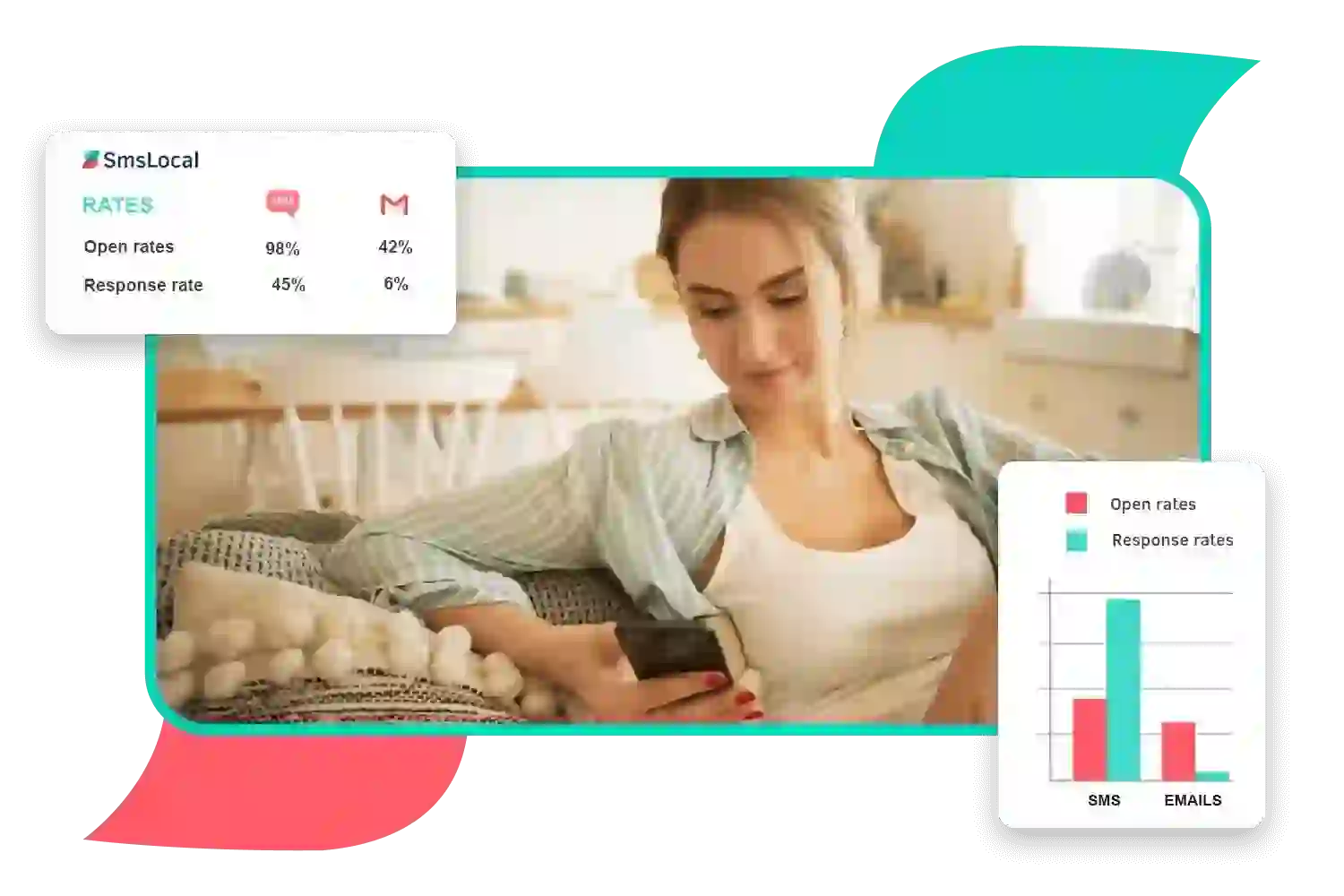
- smslocal – smslocal stands out as one of the top best bulk SMS software solutions for texting from a computer. It offers a powerful and easy-to-use bulk SMS platform with unlimited SMS capabilities. smslocal enables sending SMS blasts to unlimited contacts directly from the computer.
- SendPulse – SendPulse provides robust bulk SMS messaging features like automation workflows and contact management tools. However, it has limitations on contacts and lacks the discounts of smslocal.
- SimpleTexting – SimpleTexting allows decent bulk SMS capabilities from a computer with basic contact management options. It is fairly easy to use but lacks smslocal’s full range of features.
- Mailchimp – Mailchimp is primarily an email marketing platform with only limited SMS capabilities for texting campaigns. It does not specialize in bulk SMS like smslocal.
- Twilio – Twilio offers a pay-as-you-go bulk SMS API platform which requires development work to leverage for texting. It lacks smslocal’s purpose-built bulk SMS specialization.
| Software | Bulk SMS Capabilities | Discounts Available | Cost per SMS |
|---|---|---|---|
| Mailchimp | Up to 1000 SMS/month | No discounts | $0.10/SMS |
| SendPulse | Unlimited SMS | 10% off sometimes | $0.08/SMS |
| smslocal | Unlimited SMS | 25% off regularly | $0.006/SMS |
| SimpleTexting | Pay as you go model | Rare promotions | $0.05/SMS |
| Twilio | Pay as you go model | No discounts | $0.01/SMS |
However, MySMS only works on Windows currently. Support for Mac, web and mobile browsers is limited.
Why Choose SMSLocal?
SMSLocal provides complete Texting from Your Computer, laptop or device via our web app. With SMSLocal you get:
- Texting from Windows, Mac, Linux, iOS and Android devices
- Deep feature set including group messaging, auto replies, scheduling and more
- Global SMS reach to over 240 countries and territories
- An easy-to-use unified platform for all your messaging
- Dedicated support from our customer success team
Unleash the Power of Text messaging apps for PC
SMSLocal provides Texting from Your Computer through our web app. With SMSLocal you get:
- Cross-platform support – Text from Windows, Mac, Linux, Android, iOS and more
- Killer features – Group messaging, shared phone numbers, auto replies, scheduling and much more
- Global reach – Send texts to over 240 countries and territories
- Centralized platform – All messaging in one place via our web app
- Reliable delivery – Industry-leading deliverability rates worldwide
Optimize Workflows Via Text Apps For Computer
SMSLocal makes it easy to coordinate, collaborate and communicate via texting from your computer
- Streamline project management through texting
- Enable fast communication between distributed teams
- Improve customer service response times
- Send appointment reminders, alerts and notifications
- Coordinate events and schedules via text
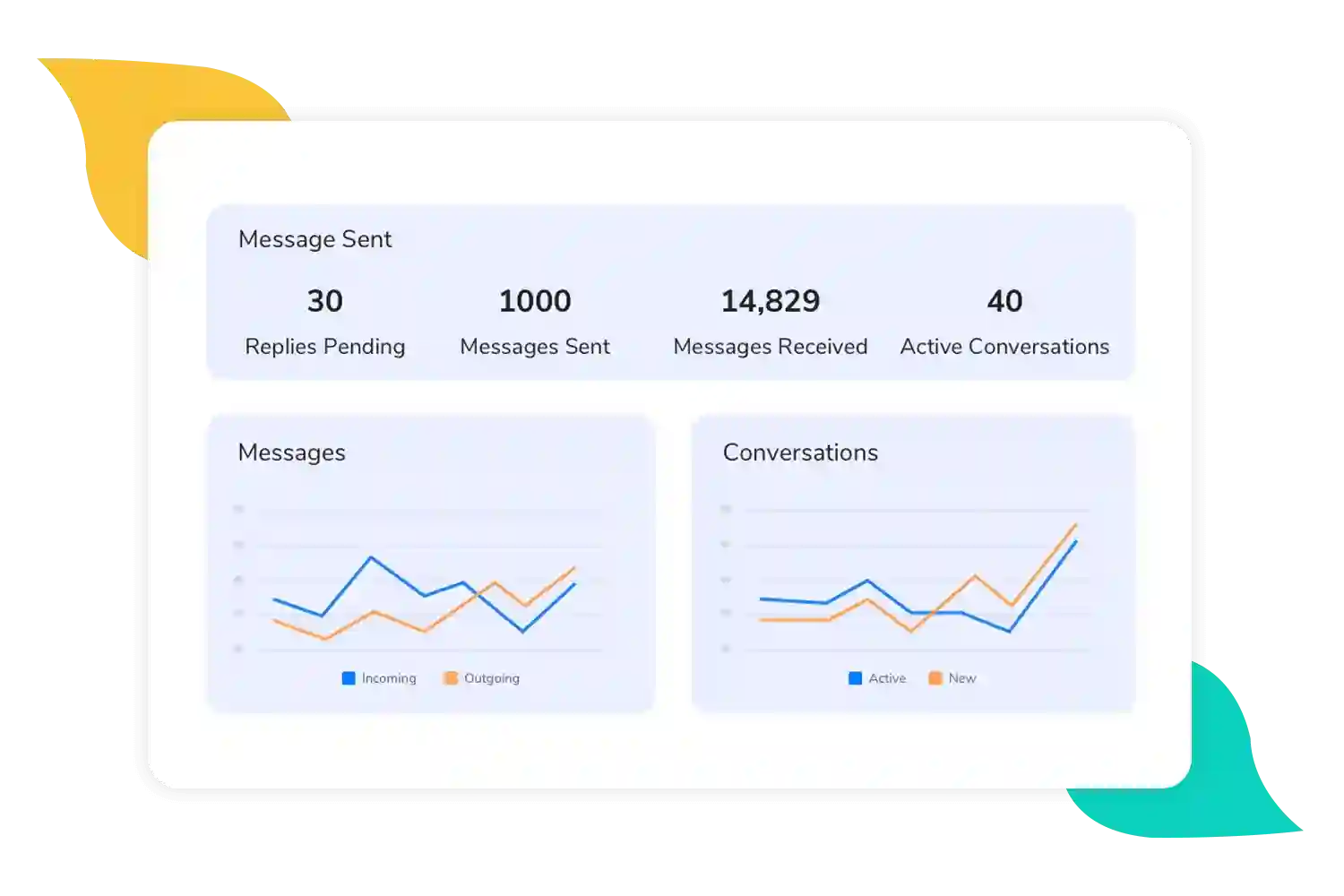
Streamline Your Work with Robust Text Messaging
SMSLocal delivers the most powerful and flexible text messaging solution for desktops and web access. With SMSLocal, you can coordinate via text from anywhere, on any device, through an intuitive centralized platform.
Simplify your workflows and enable your team to collaborate via text seamlessly through SMSLocal. Sign up for a free trial today.
Conclusione
While there are many Internet texting options, the apps discussed in this article are some of the most popular and user-friendly. Each app has unique features and benefits, making it suitable for different preferences and needs. Whether you prefer a desktop app or a web-based option, there is an app out there that will meet your needs.
So why try one of these Texting from Your Computer apps today? Stay connected with your friends and loved ones quickly from wherever you are.