 English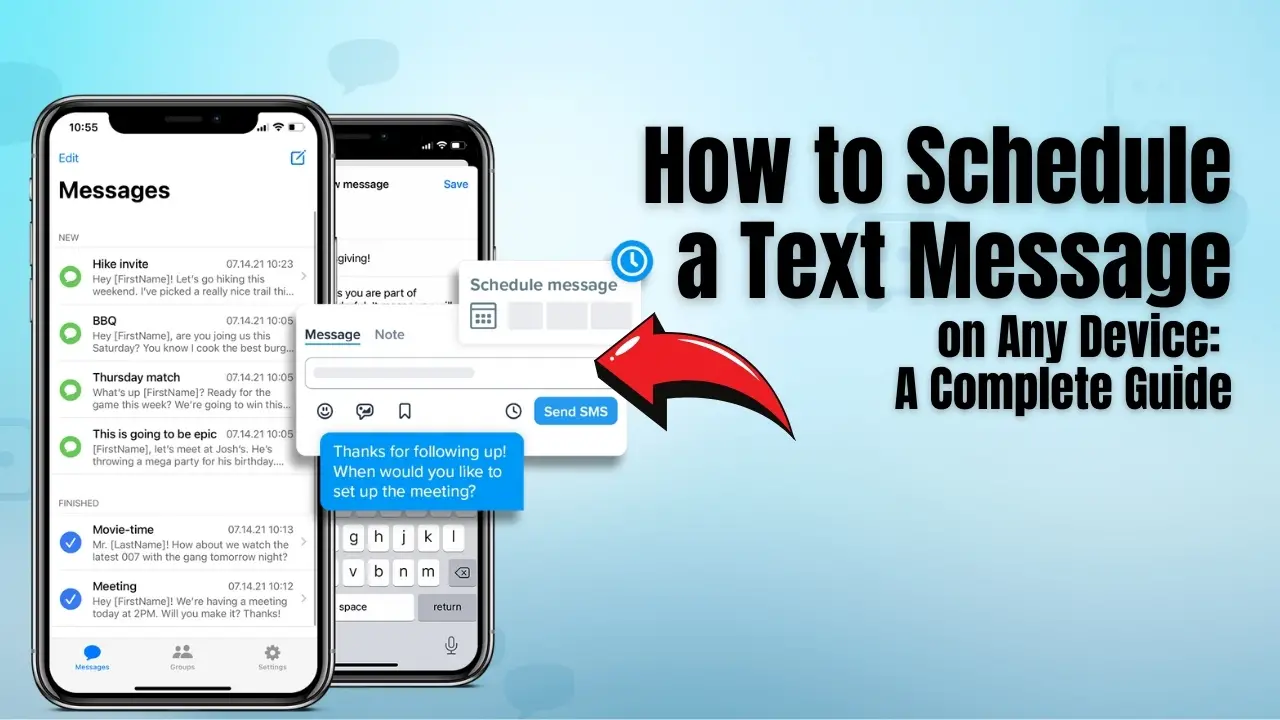
listę kontaktów w telefonie lub ręcznie wprowadź wprowadzenie
Zaplanuj wiadomość tekstową, co pozwala na automatyczne wysyłanie wiadomości o określonej dacie i godzinie, eliminując potrzebę ręcznego wysyłania. Ta funkcja stała się cennym narzędziem dla wielu właścicieli firm, którzy chcą usprawnić komunikację, uprościć operacje i zwiększyć zaangażowanie klientów. Korzystając z zaplanowanych SMS-ów, firmy mogą zachować porządek, zaoszczędzić czas i działać wydajniej.
Czy wiedziałeś? Aż 75% klientów w USA preferuje wysyłanie SMS-ów jako podstawowy sposób komunikacji z firmami.
Jeśli jesteś właścicielem firmy i chcesz poprawić komunikację i wzmocnić relacje z klientami, naucz się planować wiadomości tekstowe jest koniecznością. Dzięki SMSLocal zaplanowanie wiadomości tekstowej jest szybkie i łatwe!
Kluczowe wnioski
- Planowanie SMS-ów oszczędza czas, zapewniając automatyczne wysyłanie wiadomości, dzięki czemu idealnie nadaje się do użytku osobistego i biznesowego.
- Możesz zaplanować SMS-y, korzystając z przypomnień, aplikacji takich jak Zaplanowane lub wbudowanych funkcji, takich jak Wiadomości Samsung.
- SMSLocal to świetne narzędzie dla firm, oferujące masowe wiadomości tekstowe, przypomnienia i funkcje marketingowe umożliwiające automatyzację i personalizację wiadomości.
- Wysyłanie wiadomości we właściwym czasie zwiększa zaangażowanie, dzięki czemu zaplanowane SMS-y idealnie nadają się na przypomnienia, promocje lub wiadomości osobiste.
- Zaplanowane SMS-y są bardzo skuteczne w przypadku przypomnień o spotkaniach, dalszych działań, działań marketingowych i ważnych alertów, zwiększając satysfakcję klientów.
Najlepszy czas na zaplanowanie wiadomości tekstowej
Wyobraź sobie, że prowadzimy zapracowany gabinet dentystyczny, w którym wizyty odbywają się jedna po drugiej. Przy tak napiętym harmonogramie łatwo przeoczyć wysyłanie przypomnień o spotkaniach. Pominięcie tych przypomnień może spowodować, że pacjenci nie pojawią się na zaplanowanych wizytach, co może skutkować potencjalnym niestawieniem się na wizytę. Tutaj planowanie wiadomości tekstowych staje się dla nas niezbędnym narzędziem. Możemy ustawić automatyczne wysyłanie przypomnień, dzięki czemu nasi pacjenci będą wiedzieć o nadchodzących wizytach z dużym wyprzedzeniem.
Zaplanowanie wiadomości tekstowych pomaga nam również skutecznie współpracować z naszymi klientami, jeśli prowadzimy salon. Na przykład możemy chcieć powiadomić ich o wszelkich ofertach specjalnych lub wydarzeniach, które pojawią się na horyzoncie. Przygotowując te wiadomości z wyprzedzeniem, możemy odpowiednio wcześnie przypomnieć naszym klientom, pomagając im zaplanować wizyty pod kątem tych wydarzeń.
Możemy również używać zaplanowanych SMS-ów do osobistych przypomnień dla naszych przyjaciół i rodziny.
Rozważ ten scenariusz: w przyszłym tygodniu zbliża się impreza i chcemy wszystkim o tym przypomnieć. Planując wysłanie SMS-a dzień wcześniej, możemy mieć pewność, że nasza wiadomość dotrze do wszystkich ze szczegółami, takimi jak czas i miejsce.
Piękno planowania wiadomości polega na tym, że kiedy już je skonfigurujemy, nie trzeba o nich myśleć ponownie. Możemy skupić się na innych ważnych zadaniach, mając pewność, że nasze wiadomości trafią do skrzynek odbiorczych dokładnie na czas.
Teraz możesz się zastanawiać, jak zaplanować planowanie tych SMS-ów. To prostsze niż myślisz. Omówimy różne sposoby, aby to zrobić, czy to na iOS, Androidzie, aplikacjach do przesyłania wiadomości innych firm, czy nawet za pomocą biznesowego oprogramowania do wysyłania SMS-ów. Każda metoda ma swoje unikalne cechy i zalety, dzięki czemu z łatwością możemy wybrać tę, która najlepiej odpowiada naszym potrzebom.
Jak zaplanować wiadomość tekstową na iPhonie
Chociaż iPhone'y nie pozwalają na bezpośrednie planowanie wiadomości tekstowych, możesz ustawić przypomnienia, które będą informować Cię, gdy nadejdzie czas wysłania wiadomości. Korzystanie z aplikacji Przypomnienia to prosty sposób na utrzymanie porządku i zapewnienie terminowej komunikacji.
Ustawianie alertów tekstowych w telefonie iPhone
Nie możemy bezpośrednio planować SMS-ów za pomocą domyślnej aplikacji do przesyłania wiadomości na iPhonie, ale możemy ustawić przypomnienie, aby wysłać wiadomość później. Oto jak to robimy:
- Otwórz aplikację Przypomnienia: Zacznij od uruchomienia aplikacji Przypomnienia na swoim urządzeniu.
- Utwórz nowe przypomnienie: Stuknij w „+ Nowe przypomnienie”, aby rozpocząć konfigurowanie powiadomienia o wiadomości.
- Tytuł Twojego przypomnienia: Wpisz jasny tytuł powiadomienia o wiadomości.
- Skład tekstu: Wpisz wiadomość, którą chcesz wysłać w ramach przypomnienia.
- Dodaj więcej szczegółów (opcjonalnie): W razie potrzeby możesz dołączyć dodatkowe informacje.
- Przypisz do listy (opcjonalnie): Uporządkuj swoje przypomnienie, dodając je do określonej listy.
- Zaplanuj alert: Stuknij ikonę kalendarza i wybierz datę i godzinę przypomnienia.
- Zakończ konfigurację: Naciśnij „Gotowe”, aby zakończyć tworzenie przypomnienia.
- Wysyłanie wiadomości: Po otrzymaniu przypomnienia skopiuj z niego tekst i wklej go w aplikacji Wiadomości. Następnie naciśnij wyślij.
Dzięki takiemu podejściu nie zapomnimy o przesłaniu ważnej wiadomości, ale mimo to sami musimy wykonać ostatni krok.
Korzystanie z aplikacji Zaplanowane w celu ustalenia harmonogramu wiadomości
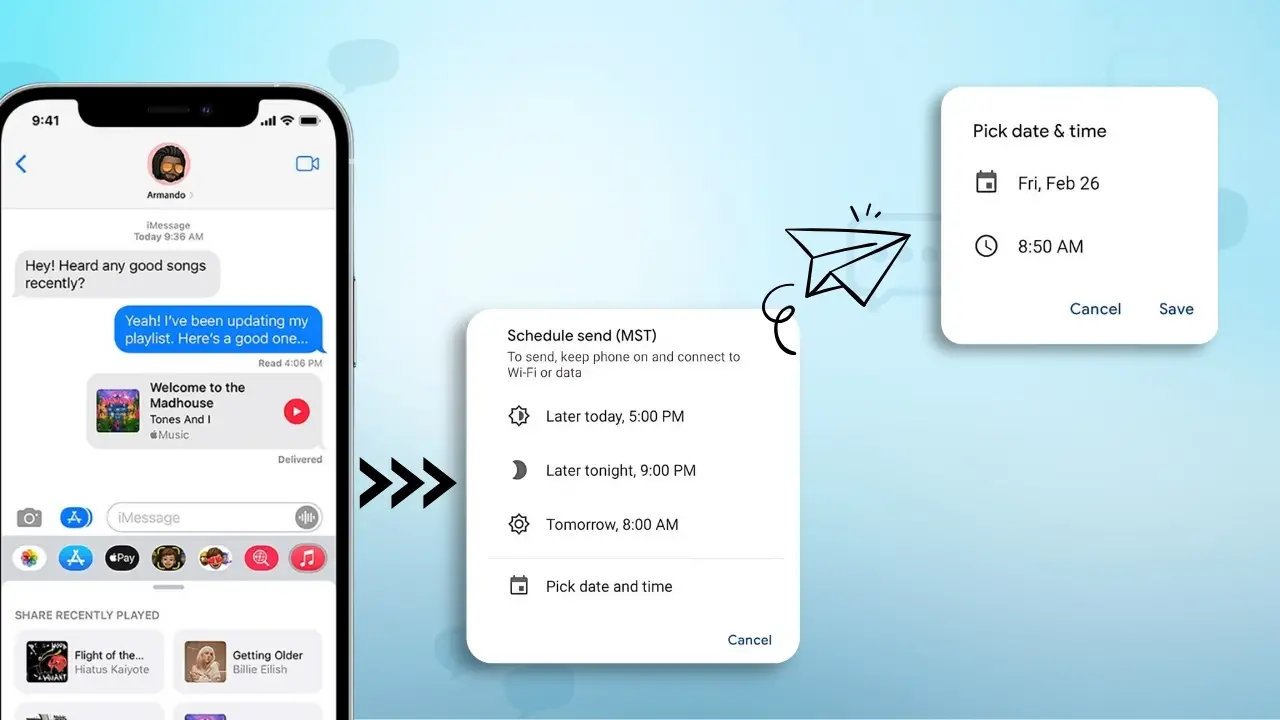
Aby zautomatyzować wysyłanie wiadomości o określonych porach, możemy skorzystać z aplikacji Zaplanowane. Oto przewodnik, jak to skonfigurować:
- Install the Scheduled App: Download and install the Scheduled App from the App Store.
- Register and Log In: Enter your details to create an account or log in.
- Start Scheduling: On the app’s home screen, tap the ‘+’ icon to begin.
- Select Recipients: Choose who will receive your message.
- Compose Your Message: Type out the message you wish to schedule.
- Choose a Sending Date: Click on ‘Schedule Date’ and pick the date for sending.
- Repetition Options: If needed, set a repeat schedule for your message.
- Set Reminders or Automation: Decide whether you want a reminder or if the app should send the message automatically.
- Finalize Scheduling: Tap ‘Schedule Message’ to complete the process.
For those wanting more options, the Scheduled App offers different plans, including a premium plan for timed message delivery. We can also check out other apps like Fext and Kyew to meet our scheduling needs.
This method provides more flexibility and automation, making it easier to manage our communications effectively.
How to Schedule a Text Message on an Android
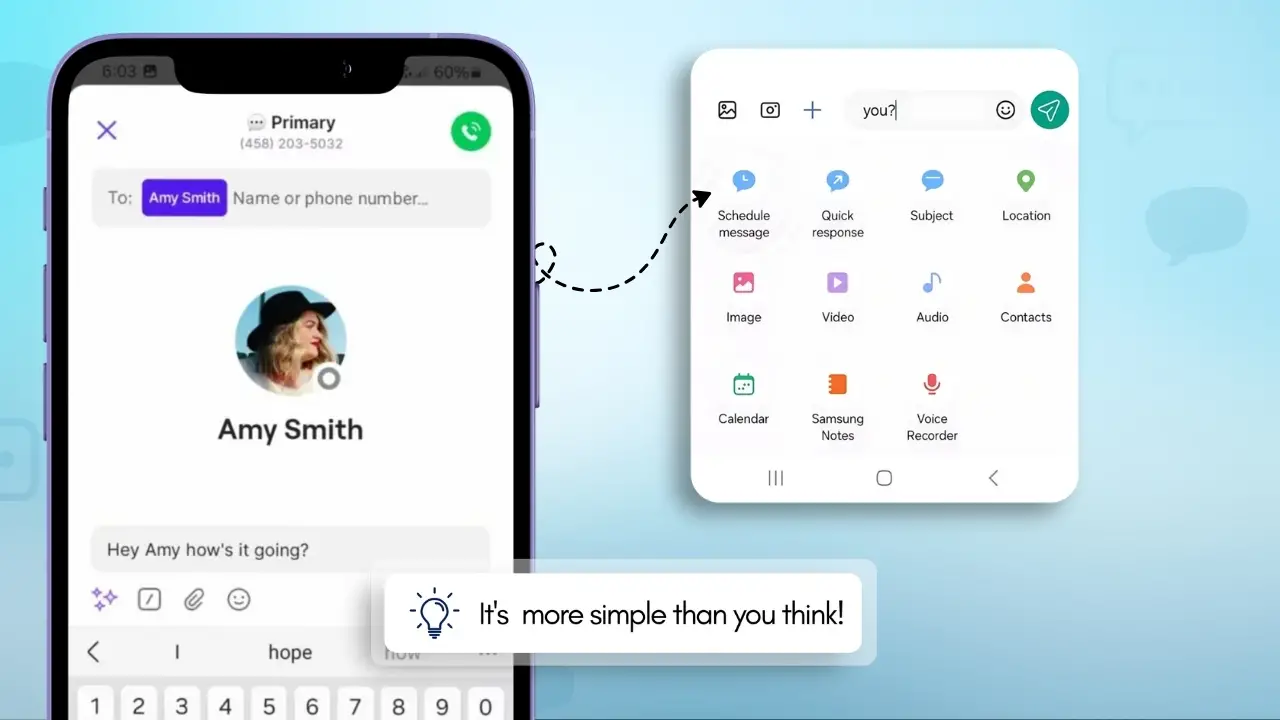
While Android doesn’t have a built-in feature for schedule a text message directly, you can set reminders to prompt you when it’s time to send a message. Using the Google Calendar or Reminders app is an easy way to stay on track and send messages at the right time.
Using Google Calendar to Plan Text Reminders
We can efficiently use Google Calendar to plan reminders for sending text messages. This approach suits those who like to plan their communication ahead of time.
- Step 1: Begin by launching the Google Calendar app.
- Step 2: Tap on the option to create a new event.
- Step 3: Pick a suitable date and time, and enter the message you wish to send.
- Step 4: When it’s time, open the reminder, copy your prepared text, and paste it into your phone’s default messaging app to send.
How to Schedule a Text Message with Samsung Devices
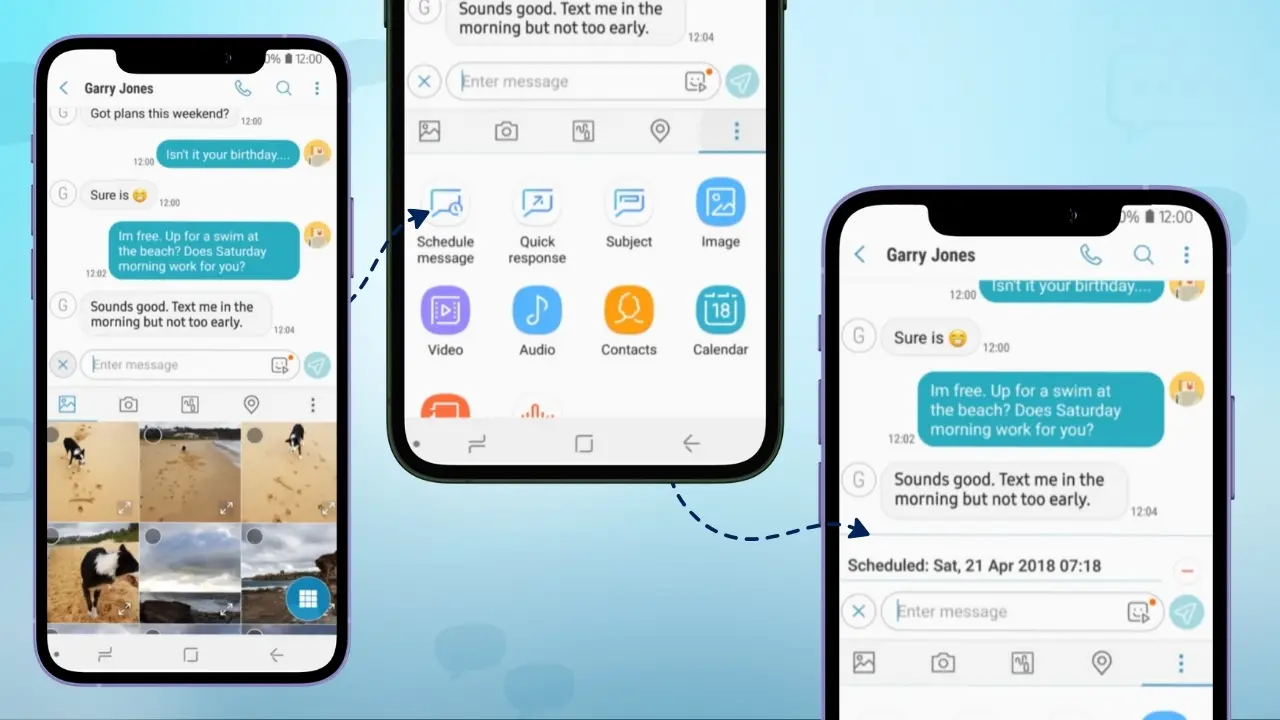
Scheduling text messages on Samsung devices is simple, thanks to the built-in Samsung Messages app. Here’s a detailed guide to schedule a text message:
- Open Samsung Messages
- Start by opening the Samsung Messages app on your device.
- Compose Your Message
- Type out the message you wish to send and add the recipient’s contact number.
- Tap the ‘+’ Icon
- Instead of tapping the usual send arrow, look for the ‘+’ icon located next to it. This will open a menu of additional options.
- Select ‘Schedule Send’
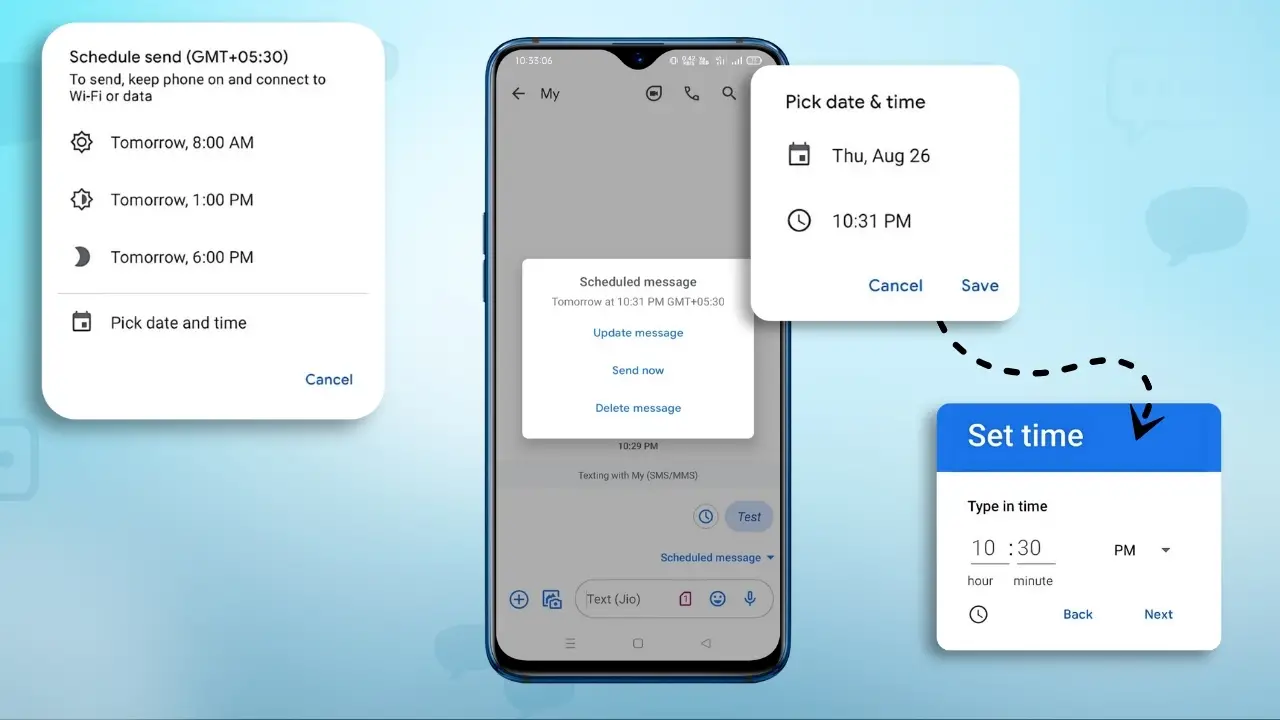
- From the menu that appears, select the ‘Schedule Send’ option. This will allow you to set a specific time for when your message will be sent.
- Set the Date and Time
- A calendar and clock will appear, allowing you to pick your desired date and time for the message to be sent. Choose the exact time you want.
- Save the Scheduled Message
- After setting the time, tap ‘Save’ to confirm. Your message is now scheduled and will be automatically sent at the chosen time.
Once the scheduled time arrives, your Samsung device will send the message without you needing to do anything further. It’s an easy and effective way to plan ahead for sending important messages.
How to Schedule a Text Message on Other Android Phones
For those who use Android devices other than Samsung, scheduling text messages can also be simple.
- Step 1: Access your phone’s default messaging app.
- Step 2: Enter the contact details.
- Step 3: Compose your message and tap the ‘+’ option.
- Step 4: Select ‘Schedule Send’ from the options.
- Step 5: Pick your preferred date and time, then hit ‘Save’ to confirm.
This set of instructions empowers us to keep our communication timely and organized. Whether using Google Calendar reminders or device-specific features, planning text messages is a useful tool.
How to Send a Text Using a Third-Party App
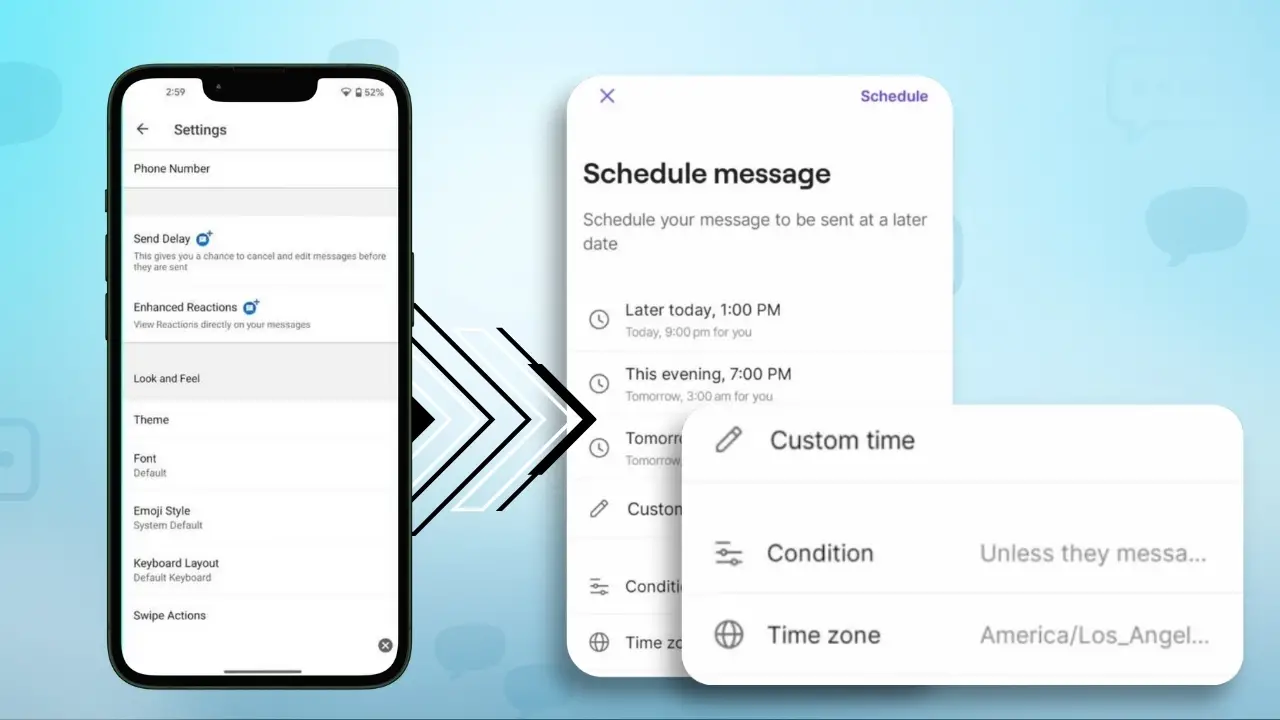
For Android users who don’t have built-in scheduled texting features, third-party apps provide an excellent solution. Here’s how to get started with scheduling a text using apps like Google Messages, Advance SMS, or Auto Sender:
- Download and Sign Up for the App
- Start by downloading the third-party app of your choice (such as Google Messages, Advance SMS, or Auto Sender) from the Google Play Store. Once installed, sign up or log in if necessary.
- Select the Recipient
- Choose the contact or contacts to whom you want to send the message. You can select from your phone’s contact list or manually enter a phone number.
- Compose Your Message
- Write the message you wish to send. Be sure to double-check the content and formatting before scheduling.
- Set the Date and Time
- Once your message is ready, choose the option to schedule the message. Set the specific date and time when you want the message to be sent.
- Save and Confirm
- After setting the time, confirm your selection and save the scheduled message. The app will automatically send your message at the scheduled time.
Using third-party apps to schedule texts helps streamline communication, save time, and keep you organized, whether you’re managing personal or business messages.
How to Schedule a Text Message Using a Texting Software
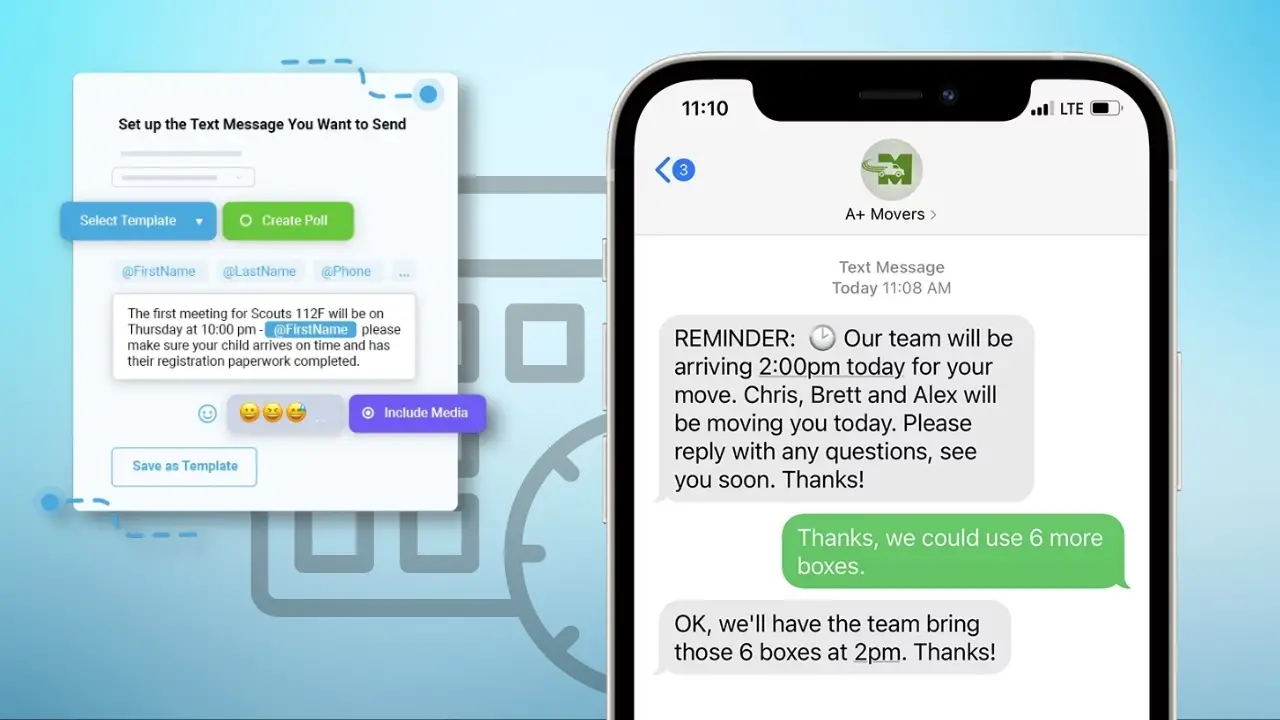
Schedule a wiadomości tekstowe using texting software can greatly improve how we communicate with our audience. While it’s possible to do this on iOS and Android, it’s not the most efficient way, especially when messaging a large group.
Texting software like smslocal makes this process much smoother. Here’s a straightforward guide on how we can use such software:
- Select Recipients: Choose the people who will receive the message. This can be a specific group or a broader audience.
- Compose Your Message: Write the message we want to send. It could be a reminder, a notification, or part of a marketing campaign. Personalizing messages is also an option with texting software.
- Set the Date and Time: Once our message is ready, we schedule it for a convenient time. This flexibility ensures our message reaches recipients when it’s most relevant.
- Automate with Triggers: We can set up our messages to automatically send when certain events occur. For example, reminders can be sent a day before an appointment, or promotions can go out at the start of a sale.
Texting software not only handles these tasks more efficiently than personal devices but also offers features that cater to specific business needs, like defining message frequency and personalizing each communication. Whether it’s for reminders, notifications, or marketing purposes, these tools allow us to communicate effectively and efficiently.
The convenience and time-saving aspects make texting software a valuable tool for businesses looking to enhance their communication strategies.
Scheduling a Message with SMSLocal
Step 1: Create an Account
- Visit the SMSLocal website and sign up by providing the required information.
- The registration process is quick and easy, allowing you to access all the platform’s features once completed.
- After signing up, you can import contacts, draft SMS messages, and schedule them for future delivery.
Step 2: Import Contacts
- Once your account is created, import your contacts by either manually adding them or uploading a contact list.
- Organize your contacts for easy selection when scheduling messages.
- SMSLocal allows you to categorize contacts, making it simple to send targeted messages to specific groups.
Step 3: Compose Your Message
- After importing your contacts, compose the message you want to send.
- You can write a custom message or use templates available on the platform.
Step 4: Schedule the Message
- Set the date and time you want the message to be sent.
- Review your message and contact selection before finalizing the schedule.
Step 5: Save and Confirm
- Once everything is set, save your scheduled message.
- SMSLocal will automatically send your message at the scheduled time, ensuring timely delivery.
What is the Best Method to Set Up Text Message Scheduling?
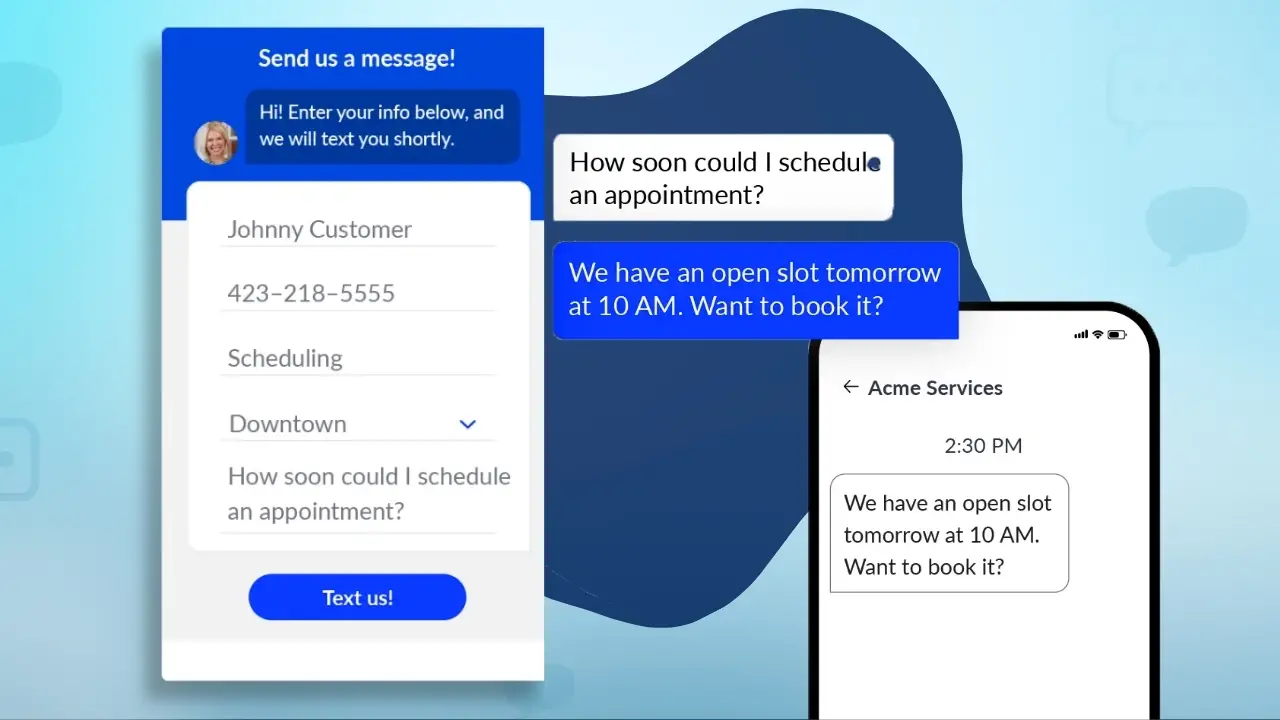
For businesses looking to schedule texts effectively, using a texting software is highly advantageous. This kind of software is designed to save time and boost engagement, making it a smart choice for business operations. We’ve found that this software provides several key features that can improve productivity and streamline communications.
Key Features of Texting Software:
- Message Scheduling: Plan and send texts at a later time that suits your needs.
- Follow-Up Frequency: Set the timing and regularity of follow-up messages to customers.
- Templates and Properties: Use a variety of templates, offering flexibility and customization.
- Attachments: Easily add images, videos, or documents to your messages.
- Signatures: Personalize your texts by adding custom signatures.
- Performance Metrics: Analyze how well your messages perform with built-in metrics tracking.
Tools like smslocal are excellent for managing various aspects of customer interactions. Whether you need to cancel or reschedule appointments, remind clients about upcoming meetings, request reviews, or manage payment follow-ups, texting software simplifies these tasks. You can sit back with confidence, knowing your messages are scheduled and will reach the intended audience on time.
Understanding these features lets us appreciate the multiple benefits of scheduling texts. This method significantly enhances our customer engagement strategy and ensures effective communication with our audience.
Importance of Planning When to Send Text Messages
Sending text messages at the right time is a powerful tool for both businesses and individuals. Here’s how scheduling messages can make a difference:
- Sharing Time-Sensitive DetailsScheduling messages is particularly useful for delivering time-sensitive information. For example, if you need to remind a patient to take their medicine at a specific time, you can schedule a message to go out at the right moment. This ensures the reminder is sent even if your workday ends earlier, and it helps the patient stay on track.
- Improved Customer Engagement for BusinessesFor businesses, planned messages can enhance communication with customers. By scheduling communications thoughtfully, you increase the likelihood of successful interactions. It also encourages more reviews from satisfied clients, helping to build your reputation and keep customers engaged.
- Maximizing EfficiencyScheduling text messages is an excellent way to manage your time. With busy schedules, it can be challenging to remember to send important messages at the right time. By planning ahead, you can write out your messages in advance and schedule them, ensuring they get sent without the risk of forgetting. This method helps keep you organized and efficient in your communication.
Practical Uses for Scheduled Text Messages
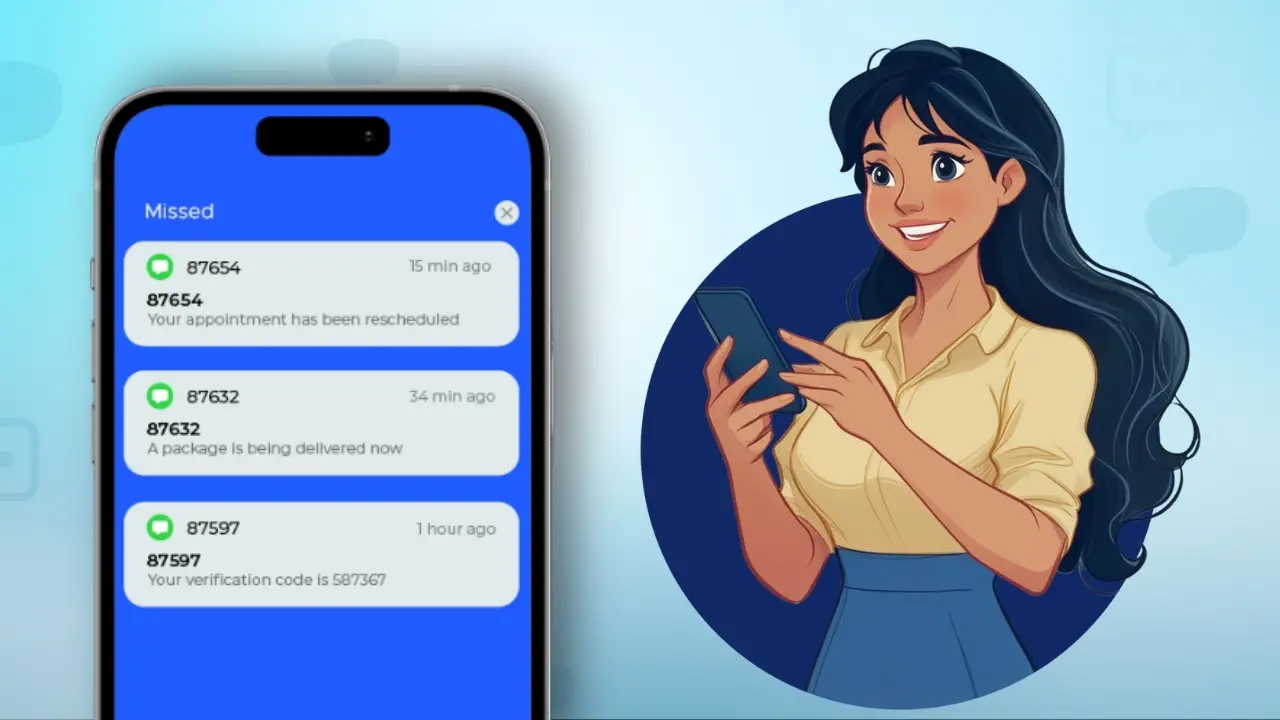
Scheduled text messages offer a wide range of applications that enhance how we connect and communicate with others. Here are some key ways they can be used effectively:
- Appointment RemindersScheduled texts are perfect for sending appointment reminders, ensuring clients never miss a meeting. By setting these reminders in advance, you can keep your schedule organized and clients informed without manual effort.
- Payment ConfirmationsSending payment confirmations through scheduled texts helps keep your customers informed about their transactions. This can build trust and improve customer satisfaction by providing real-time updates on their purchases or payments.
- Marketing Campaigns and PromotionsFor businesses managing marketing efforts, scheduled messages are a valuable tool for launching campaigns and sharing promotions. This allows you to reach a large audience without overburdening resources, ensuring your message is sent at the most effective time.
- Updates and NotificationsImportant updates, such as new product releases or business changes, can be scheduled to reach both customers and team members at the right time. This helps keep everyone on the same page and avoids unnecessary disruptions during busy hours.
- Managing Time Zone DifferencesWhen dealing with international partners or customers, time zone differences can be a barrier. Scheduled texts help bridge this gap, ensuring your messages arrive at appropriate hours, which is especially useful for communicating across various time zones.
- Sending Warm GreetingsScheduled texts are also handy for sending timely greetings, such as birthday wishes or holiday messages, ensuring they are delivered right when they matter most.
- Feedback CollectionTo gather valuable insights, scheduling survey texts and review requests at optimal times can ensure higher response rates. This makes feedback collection more efficient, helping you make data-driven decisions.
- Follow-Up MessagesScheduling follow-up messages is a great way to maintain ongoing communication and engagement. These texts can be sent automatically to check in with your audience, reinforcing your relationship with customers or clients.
Overall, scheduled text messages provide a convenient, efficient way to manage various aspects of communication, from reminders to marketing and feedback, making it easier to stay connected and organized.
Wniosek
We hope this guide has helped answer your question on how to schedule a text message. For any business, ensuring customer satisfaction, addressing their concerns, and responding to their queries promptly is key to success.
Text messaging is a time-saving and cost-effective solution for achieving all of this. With SMSLocal’s easy-to-use features, you can enhance customer engagement and communication. schedule a text messages in advance, you can ensure timely and efficient communication with your customers, all while saving valuable time
Enhance your customer communication with SMSLocal and streamline your messaging process.
Często zadawane pytania
Yes, scheduling texts is possible on desktops, mobile phones, and both iPhone and Android devices. For more sophisticated options, like automatic replies or quick responses, one might consider using a text messaging tool such as smslocal, which offers these features.
To send messages at a specific time and date, particularly to multiple recipients, using SMS software such as smslocal is recommended. It enables features like message scheduling, batch texting, and personalization, making it suitable for managing large groups and tailored messaging.
Yes, with iOS 16 and above, you can schedule send iMessages to send later. Simply compose your message, tap the “Send Later” option, choose the date and time, and your message will automatically be sent at the scheduled time.
The best time to schedule a text message depends on its purpose: • Personal messages: Send in the morning or evening when the recipient is likely to be free. • Business messages: Schedule during work hours, typically between 9 AM to 5 PM. • Marketing messages: Aim for peak customer engagement times, such as mid-morning or early afternoon.
You can schedule a variety of text messages, including: • Personal messages: Reminders, birthday greetings, or casual check-ins. • Business messages: Appointment reminders, follow-up messages, or customer service updates. • Marketing messages: Promotions, deals, and campaign announcements. • Important alerts: Reminders for deadlines, payments, or time-sensitive notifications.
Yes, you can schedule text messages on both iPhones and Android devices. iPhones have a native “Send Later” feature, while Android users can use built-in features or third-party apps to schedule their messages.
Yes, you can schedule a text messages on both iPhones and Android devices. iPhones have a native “Send Later” feature, while Android users can use built-in features or third-party apps to schedule their messages.