
 English
Nel mondo veloce di oggi, parlare velocemente è importante. Gli utenti iPhone possono inviare più messaggi contemporaneamente. Questo rende facile parlare con molte persone.
Questa guida ti mostrerà come farlo. Lo farai scopri come inviare SMS a molte persone contemporaneamente. Vedrai anche come utilizzare app speciali per inviare molti messaggi.
Punti chiave
- Gli SMS di massa su iPhone possono essere eseguiti tramite l'app Messaggi integrata.
- I testi di gruppo consentono la comunicazione con più contatti contemporaneamente.
- Le app di terze parti possono migliorare la capacità di inviare messaggi in blocco in modo efficace.
- Comprendere le funzionalità della messaggistica di gruppo può semplificare la comunicazione.
- L'invio di SMS in massa può far risparmiare tempo e migliorare la diffusione delle informazioni.
Come inviare un SMS di massa su iPhone?
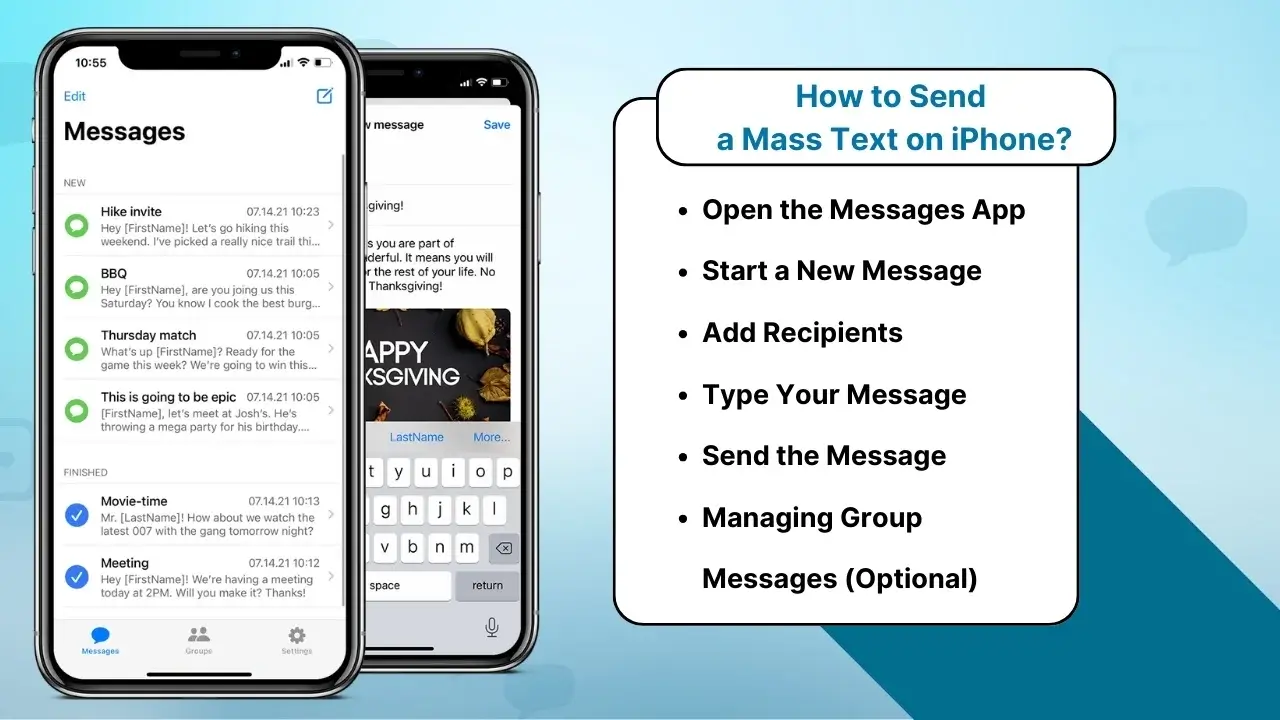
Inviare un SMS collettivo su un iPhone è semplice, ma ci sono alcuni passaggi importanti da seguire per garantire che tutto proceda senza intoppi. Ecco come puoi inviare messaggi a più persone senza utilizzare app di terze parti:
Passaggio 1: apri l'app Messaggi
Inizia aprendo l'app Messaggi sul tuo iPhone. Questa è l'app di messaggistica integrata che utilizzerai per inviare SMS.
Passaggio 2: inizia un nuovo messaggio
Tocca il pulsante Scrivi (il piazza con l'icona di una matita) situato nell'angolo in alto a destra dello schermo.
Passaggio 3: aggiungi destinatari
Nel campo "A:", digita i nomi o i numeri di telefono delle persone a cui desideri inviare l'SMS collettivo. In alternativa, tocca l'icona "+" per selezionare i contatti dalla tua rubrica.
- Se stai inviando un messaggio di gruppo, puoi aggiungere tutti i destinatari che desideri.
- Se utilizzi iMessage, puoi anche includere persone che utilizzano altri dispositivi Apple.
Passaggio 4: digita il tuo messaggio
Scrivi nel campo di testo il messaggio che vuoi inviare a tutti. Potrebbe trattarsi di un annuncio, un promemoria o qualsiasi tipo di comunicazione di massa.
Passaggio 5: invia il messaggio
Una volta che sei soddisfatto del tuo messaggio, tocca il pulsante di invio (la freccia blu). Il messaggio verrà inviato a tutti i destinatari contemporaneamente.
Passaggio 6: gestione dei messaggi di gruppo (facoltativo)
Se stai inviando un SMS di gruppo, iPhone creerà automaticamente una chat di gruppo. Tutti nel gruppo possono rispondere al messaggio e le loro risposte saranno visibili all'intero gruppo.
- Nota: se desideri impedire a tutti di rispondere, vai all'inizio del thread del messaggio e tocca "Informazioni". Da lì, puoi disattivare i messaggi di gruppo o disattivare le notifiche.
Tipi di messaggi di testo di massa
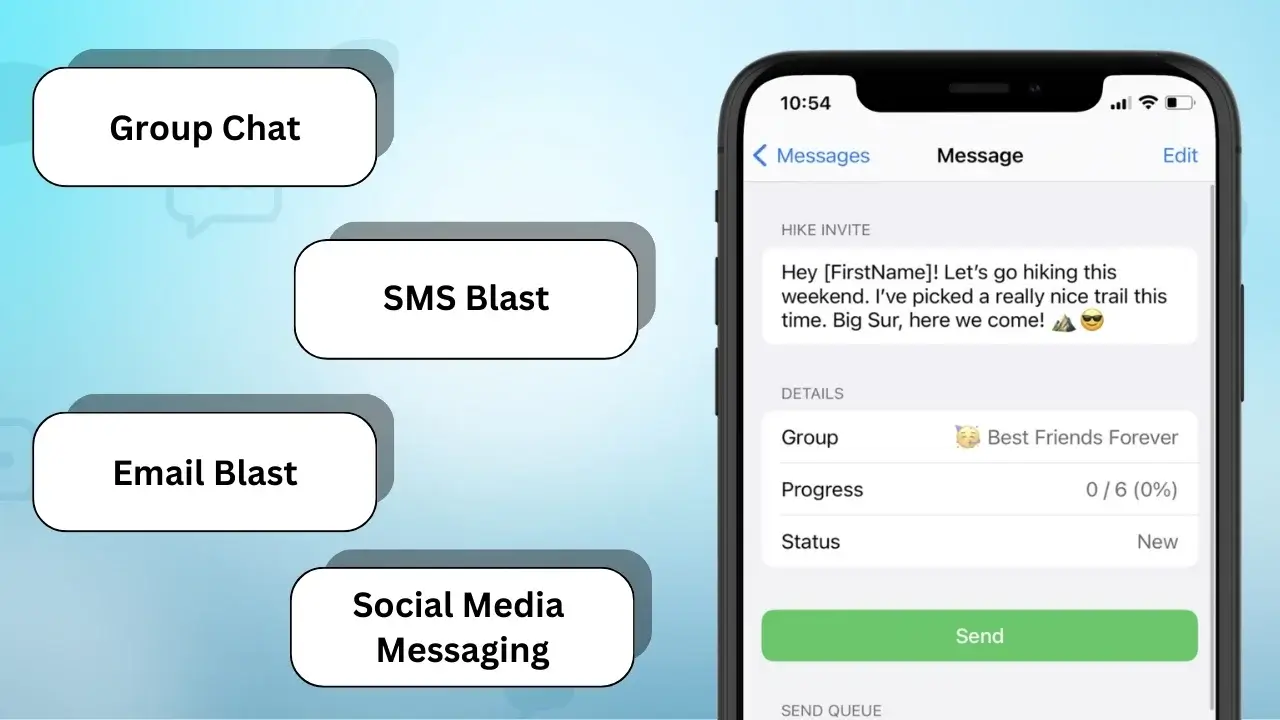
È fondamentale conoscere i diversi tipi di messaggi di massa per una buona comunicazione con iPhone. Ogni tipologia ha il suo utilizzo e soddisfa esigenze diverse. Ciò semplifica la condivisione delle informazioni in molti modi.
Chat di gruppo
Una chat di gruppo consente a molte persone di parlare in un unico posto. È ottimo per chat veloci e lavoro di squadra. È perfetto per pianificare o condividere notizie con un gruppo.
Esplosione SMS
Gli SMS inviano un messaggio a molte persone contemporaneamente. Sono utili per annunci o affari rapidi. In questo modo, tutti ricevono il messaggio velocemente, senza lunghe chiacchiere.
Esplosione di e-mail
Le e-mail esplosive sono per coloro a cui piacciono le e-mail più dei testi. Ti consentono di inviare più informazioni e file. È una scelta intelligente per raggiungere le persone a cui piacciono le e-mail.
Messaggistica sui social media
La messaggistica sui social media sta diventando sempre più popolare. Servizi come WhatsApp e Facebook Messenger semplificano la condivisione. Sono ottimi per messaggi veloci e per condividere foto o video.
Potresti anche sapere:
Inviare messaggi SMS su iPad: nozioni di base
Come inviare messaggi di massa individualmente su iPhone
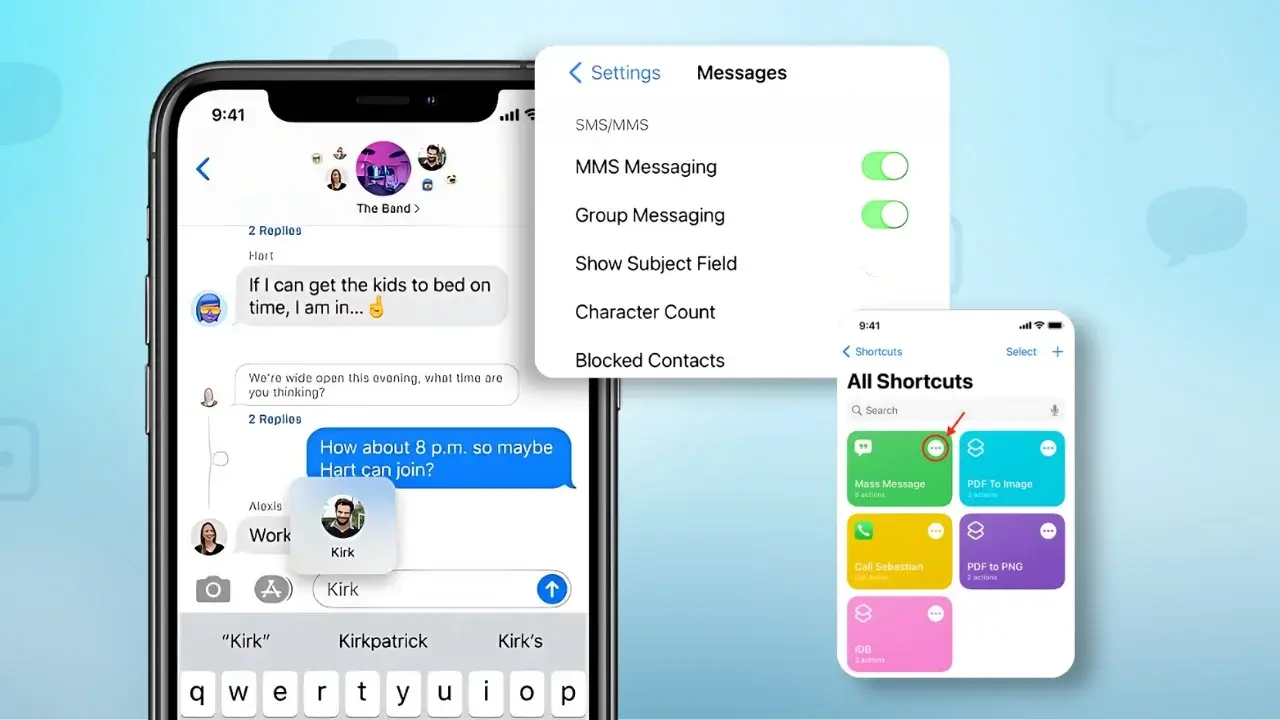
L'invio di messaggi uno per uno su un iPhone aggiunge un tocco personale. Aiuta a evitare i problemi della messaggistica di gruppo. Saper inviare una messa il testo su iPhone rende la comunicazione migliore e più significativa.
Ecco come inviare un SMS di massa individualmente:
- Apri l'app Messaggi sull'iPhone.
- Tocca il pulsante Scrivi nell'angolo in alto a destra.
- Inizia a digitare il nome del primo contatto nel campo "A:". Seleziona il contatto dai suggerimenti.
- Digita il tuo messaggio nell'area di inserimento testo.
- Premi Invia per consegnare il messaggio.
- Ripeti la procedura per ogni contatto che desideri raggiungere, assicurandoti che l'elenco dei destinatari rimanga riservato.
This method lets you send personalized messages to many people. By choosing each contact individually, you can make messages that fit each person’s needs. It keeps your messages private and professional, while still getting your point across.
Managing Group Text Conversations on iPhone
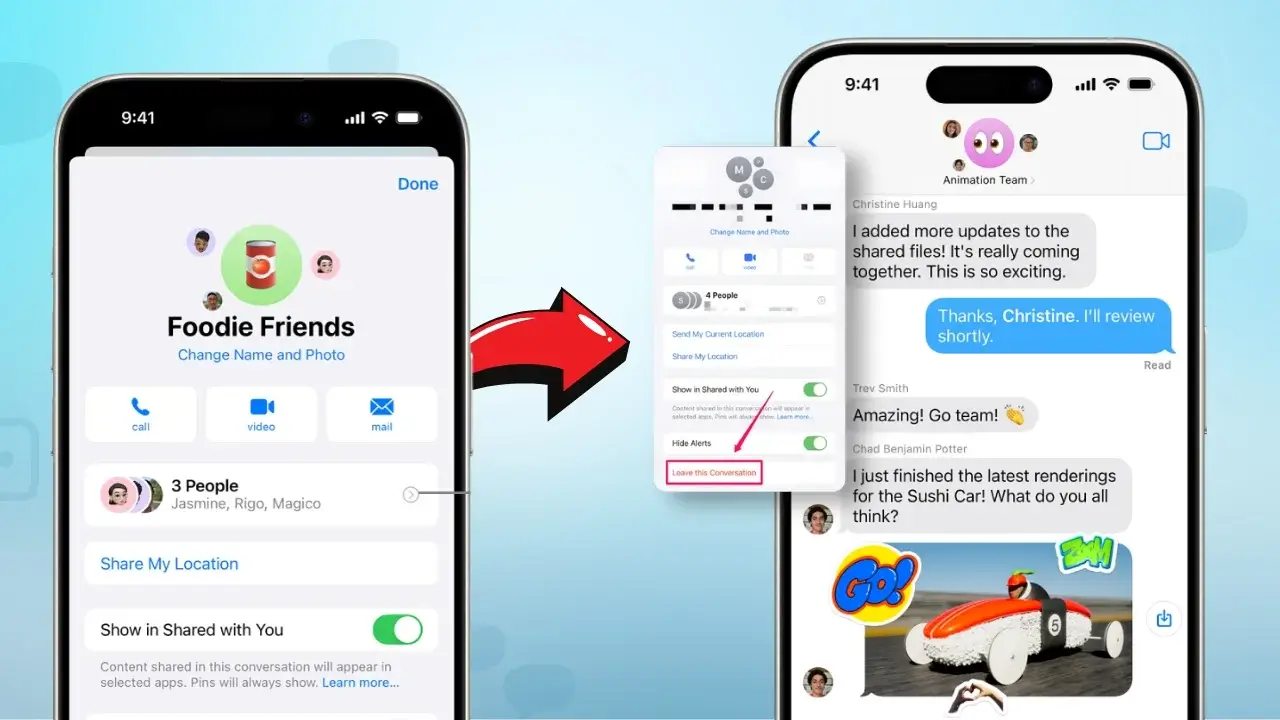
To manage group text conversations on iPhone well, you need to know how to use the iphone group text feature. This feature makes talking to many people easy and keeps talks organized. Here are some tips for handling these chats:
- Muting Notifications:If a group text on iphone gets too much, you can mute notifications. This stops constant alerts, letting you check messages when you want.
- Removing Members:Sometimes, you might need to take people out of the chat. This helps keep talks focused and relevant to those who are really involved.
- Responding Appropriately: Being polite in group chats is important. Answering specific comments keeps things clear. Using the “reply” function keeps messages on track and avoids going off-topic.
Keeping things organized is key in group chats. Using iPhone features can make talking better without overwhelming everyone. Good management makes group texts more fun and useful.
| Caratteristica | Description | Benefits |
|---|---|---|
| Muting Notifications | Silences alerts for a specified period or until manually unmuted. | Reduces distraction from continuous messaging. |
| Removing Members | Removes individuals from the group, preventing them from receiving further messages. | Keeps discussions relevant to current participants. |
| Replying to Specific Messages | Allows users to respond to particular comments within the chat. | Keeps conversations focused and organized. |
How to Send a Mass Text on iPhone Without Creating a Group
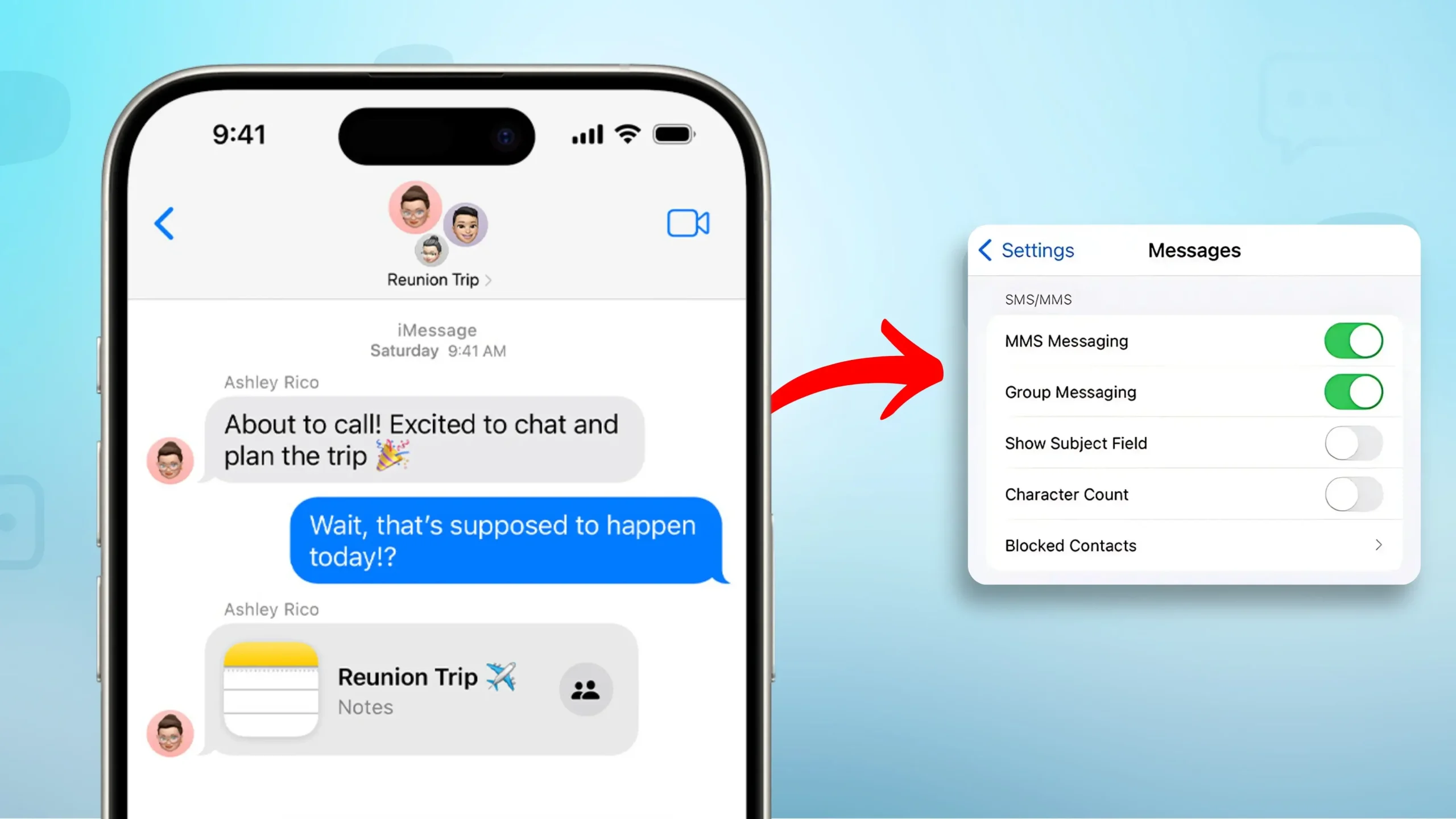
Sending many texts at once on an iPhone is easy and keeps talks private. Each message is seen as a personal chat, not part of a group. Here’s how to send a mass text on iPhone step by step, using your iPhone’s features.
Step by step guide
- Open the Messages app on your iPhone.
- Compose a new message by tapping the New Message icon.
- In the recipient field, type the first person’s phone number or select it from your contacts.
- Write your message in the text box above the keyboard.
- Tap the send button to deliver the text.
- To send to another recipient, create a new message by returning to the main Messages screen.
- Repeat steps 3 through 5 for each individual you wish to contact.
To make sending many texts faster, use the copy and paste feature. After writing your message, copy it. Then, paste it into new messages for each person. You can also use the iPhone’s text replacement settings for quicker typing. These tips make sending lots of texts easier.
How to Send a Mass Text on iPhone Without Group Message
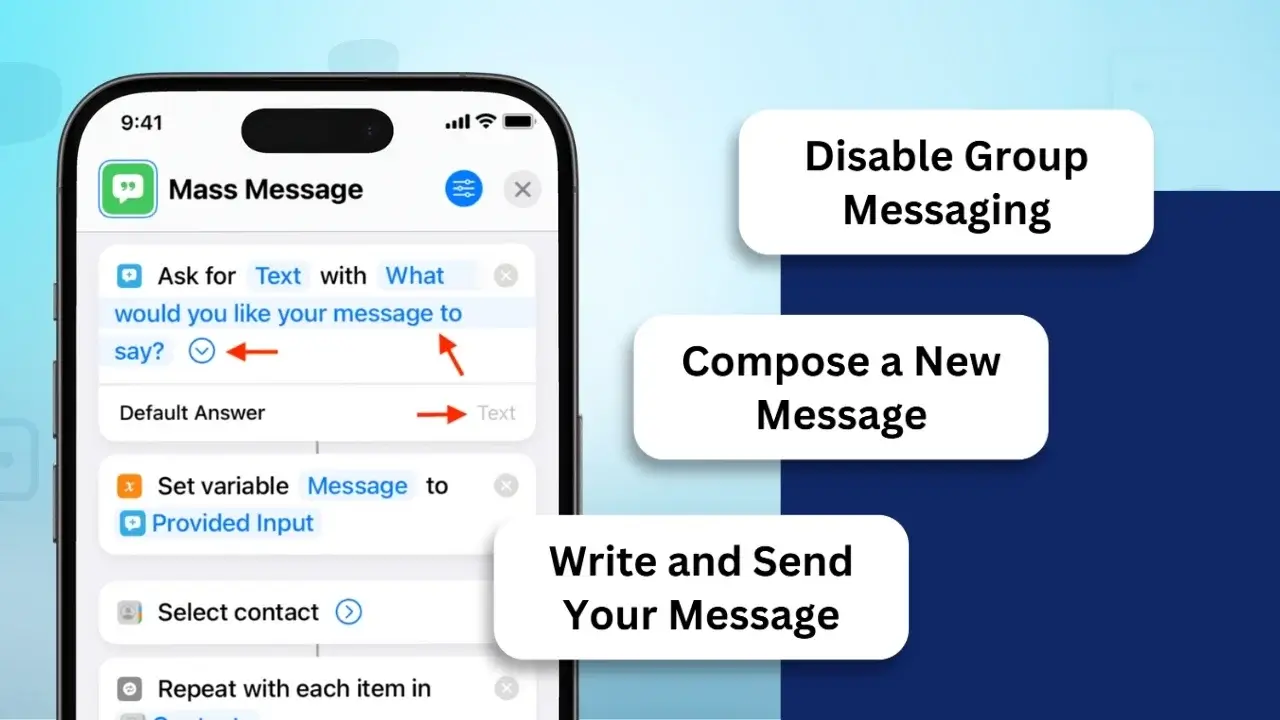
Sending a text blast on your iPhone privately is simple. How to send a mass text on iPhone, create individual messages for each recipient, avoiding group messages. This keeps contacts private and ensures they don’t see each other’s information.
Disable Group Messaging:
- Go to Settings > Messages and turn off Group Messaging.
Compose a New Message:
- Open the Messages app, tap the Compose button, and add recipients individually.
Write and Send Your Message:
- Example: “Hi [First Name], a reminder about Friday’s 3 PM meeting. Let me know if you have questions!”
- Each recipient will receive the message as a separate text.
Using the Notes app is a great way to send many texts at once. Here’s how to do it:
- Open the Notes app and write your message. This will be your template for sending many texts.
- Copy the message from the Notes app.
- Open the Messages app and pick the person you want to text.
- Paste the message into the message field.
- Do this for each person you want to text.
This method keeps messages private. It makes sure each person only sees your message. Or, you can use a third-party app for sending texts. These apps make it easy to send many messages without showing them all at once.
| Method | Privacy Level | Facilità d'uso | Recommended For |
|---|---|---|---|
| Notes App | Alto | Moderare | Personal Messages |
| Messaging App | Alto | Alto | Business Communication |
| App di terze parti | Moderare | Easy | Bulk Messaging |
Each method has its own benefits. They help you send texts in different ways. Knowing how to send many texts at once makes talking to lots of people easier.
Text Multiple People Individually on iPhone
Learning to text many people one by one on an iPhone can really help. It’s different from sending the same message to everyone at once. This way, you can talk to each person in a way that feels special to them.
To begin, it’s important to quickly find the contacts list. You can use the Contacts app or the Messages app to pick several contacts for individual messages. Here are some tips to make texting better:
- Use the search function to find people fast.
- Make each message special by thinking about what each person likes or what you’ve talked about lately.
- Keep your messages short and clear so everyone gets your point.
When you text many people, it’s key to be clear. A good message grabs attention and makes people want to reply. Here’s a table that shows how to message well:
| Strategy | Description | Impact on Engagement |
|---|---|---|
| Personalization | Make messages special for each person | More likely to get a reply |
| Timing | Send messages when they’re most likely to be seen | Gets more reactions |
| Conciseness | Keep messages short and to the point | People are more likely to remember |
Using these tips can really make texting many people better. By being clear and relevant, you can get more people to respond. This makes your efforts at texting many people more successful.
How to Send a Mass Text to all Contacts on iPhone
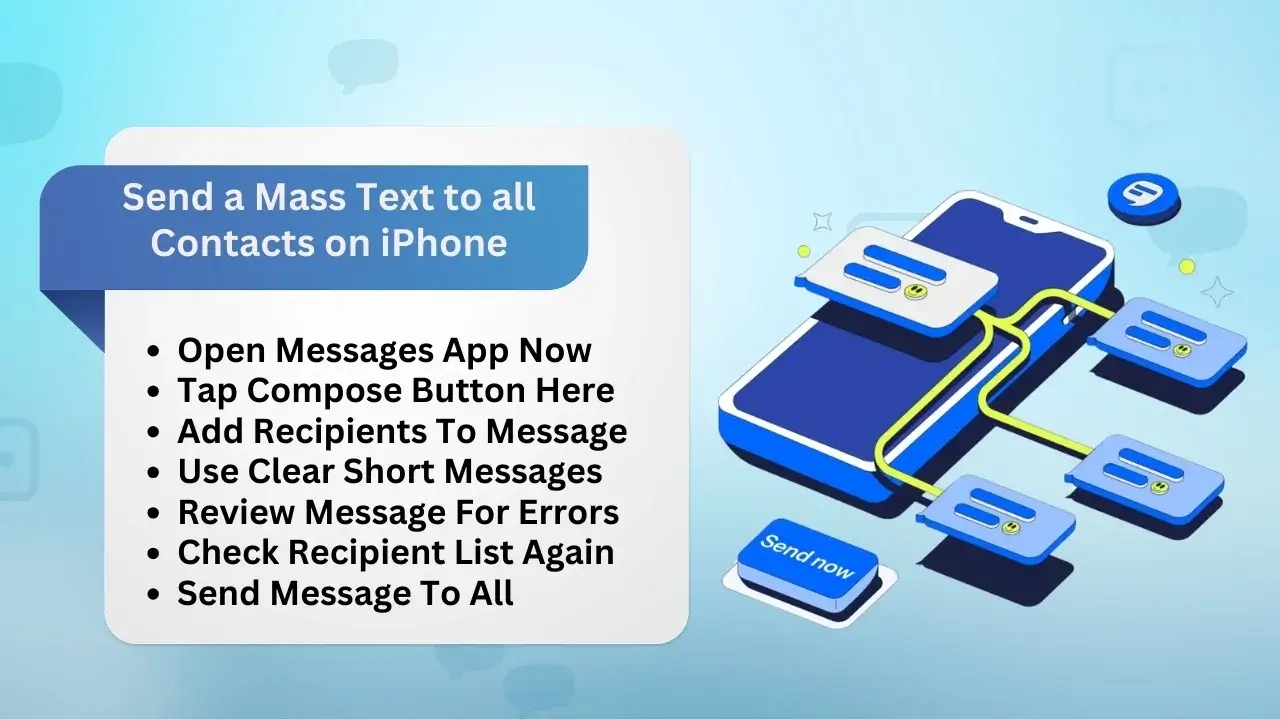
Mass texting on iPhone lets you talk to many contacts at once. It’s great for big events or work updates. Here’s how to send texts to all your iPhone contacts.
Steps to follow
- Apri l'app Messaggi sull'iPhone.
- Tap the compose button in the upper right corner to start a new message.
- In the “To:” field, start typing names or tap the plus icon to pick from your contacts.
- For big groups, use third-party apps made for bulk messaging.
- Write your message clearly and short to get people’s attention.
- Check the message to make sure it’s right and for the right people.
- Send the message to all your contacts, knowing there might be limits.
Using good practices helps people read your messages. Clear and short texts are best. This way, you can easily update your friends and family.
Send Bulk Text Messages from Your iPhone to Business Clients
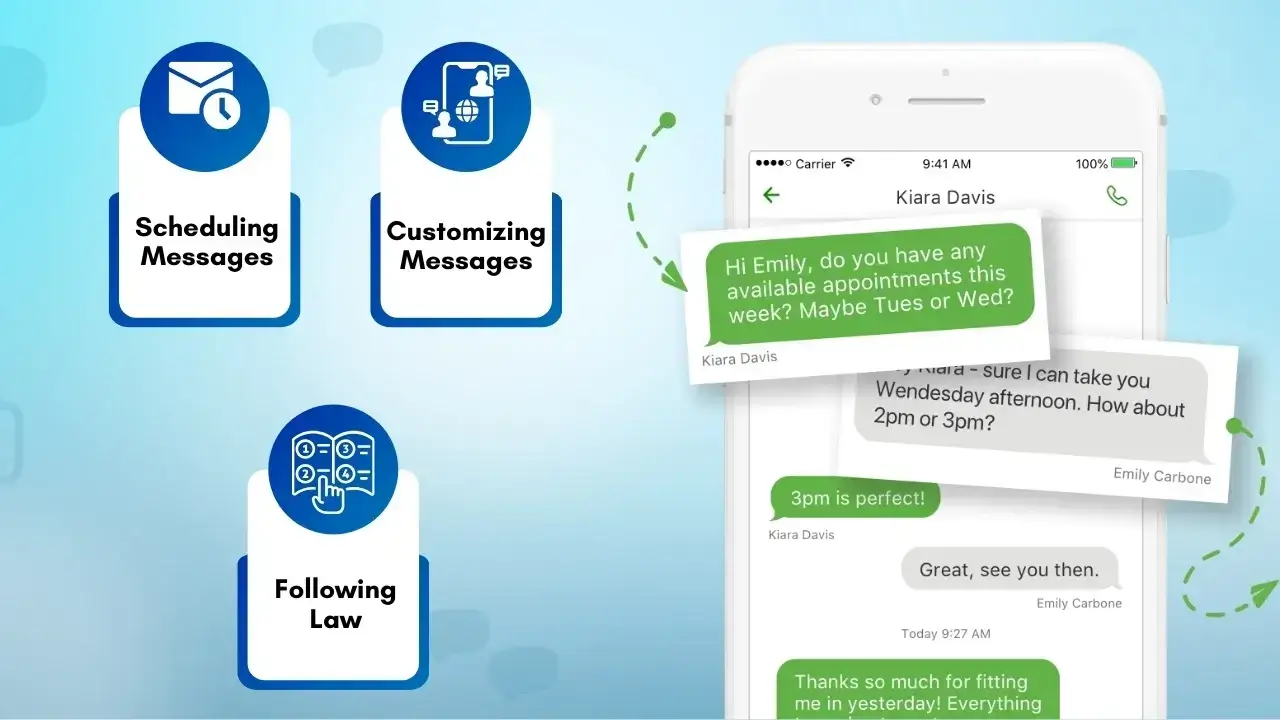
Sending lots of messaggi di testo from an iPhone to business clients is a great way to talk to many people at once. It makes communication better and helps you connect with more people. With the right tools, you can send messages to lots of people quickly.
Using special business texting apps is better than the standard iPhone messaging. These apps let you manage your messages well. They have features like:
- Scheduling messages for the best times to send
- Customizing messages for each person
- Following the law for sending texts
Using an iPhone to send lots of texts has many benefits. You can reach more people and see how well your messages are doing. This helps you know if your messages are working.
In short, using a professional texting service for sending lots of messages can really help your business. Picking the right service means your messages will be on time, relevant, and follow the rules.
| Caratteristica | Standard iPhone Messaging | Business Texting Platform |
|---|---|---|
| Bulk Sending | Limitato | High Volume Capability |
| Personalization | Basic | Advanced Customization |
| Compliance Tools | No | Yes |
| Opzioni di pianificazione | No | Yes |
| Analitica | No | Detailed Reporting |
How to Select the Best Tool for Sending Mass Texts
Choosing the right tool for sending mass texts is key for good communication. There are many options, so it’s important to compare them. A good service makes sending mass texts easy and efficient.
Steps to Find the Best Tool for Mass Texting
Assess User-FriendlinessLook for tools with a simple and intuitive interface.
- A user-friendly design helps you get started quickly without needing extensive training.
Evaluate Pricing Options
- Compare different pricing plans offered by various tools.
- Select one that aligns with your budget and specific requirements.
Check Scalability
- Scegli uno strumento in grado di gestire la crescita man mano che le tue esigenze si espandono.
- Assicurati che funzioni perfettamente sia per i piccoli che per i grandi gruppi.
Considera le capacità di integrazione
- Cerca servizi che si integrino con altri strumenti come CRM, piattaforme di posta elettronica o analisi.
- L'integrazione fluida migliora l'efficienza della comunicazione.
Leggi le recensioni
- Leggi le recensioni e le testimonianze degli utenti per comprendere l'affidabilità e le prestazioni dello strumento.
- Considera le esperienze degli altri per prendere una decisione informata.
Utilizzando questi passaggi, puoi scegliere lo strumento migliore per le tue esigenze di comunicazione.
Conclusione
L'invio di SMS di massa su iPhone ha molti modi per soddisfare esigenze diverse. Puoi utilizzare le chat di gruppo per conversazioni divertenti o gli SMS per messaggi seri. Conoscere il metodo giusto ti aiuta a raggiungere meglio.
Pensa a chi stai inviando e cosa stai dicendo. Questo ti aiuta a scegliere il modo migliore per inviare messaggi. Si assicura che il tuo messaggio arrivi bene.
Prova i suggerimenti di questo articolo per una migliore comunicazione di massa. Utilizzando gli strumenti e i metodi giusti puoi rendere i tuoi messaggi più forti. Ciò aiuta a creare connessioni migliori e a migliorare il modo in cui le persone ti rispondono.
Raggiungi il tuo pubblico in modo rapido ed efficace con le soluzioni di messaggistica collettiva di SMSLocal.
Domande frequenti
Per inviare un SMS collettivo senza creare una conversazione di gruppo: • Apri l'app Messaggi. • Inizia un nuovo messaggio toccando l'icona di composizione. • Inserisci il numero o il nome di ciascun destinatario nel campo "A:". • Scrivi il tuo messaggio. • Invialo e ogni destinatario riceverà il testo individualmente.
Puoi inviare più SMS a destinatari diversi seguendo questi passaggi. Come inviare più SMS su iPhone? Apri semplicemente l'app Messaggi, digita il tuo messaggio e invialo a ciascun destinatario individualmente senza creare una chat di gruppo. • Apertura dell'app Messaggi. • Digitando il messaggio una volta. • Copiare il testo e incollarlo in conversazioni separate con singoli contatti.
Per inviare SMS individuali a più persone: • Vai su Impostazioni > Messaggi. • Disattiva "Messaggi di gruppo". • Apri l'app Messaggi e scrivi il tuo messaggio. • Aggiungi più destinatari al campo "A:". • Invia il messaggio e ogni persona lo riceverà come testo separato.
Per inviare SMS in massa: • Utilizza un'app di terze parti come SMSLocal, TextBlast o strumenti simili progettati per la messaggistica di massa. • Queste app ti consentono di inviare facilmente messaggi personalizzati a molti destinatari. • Scarica l'app, carica l'elenco dei contatti e segui le istruzioni dell'app per inviare il tuo messaggio.
Puoi inviare un SMS collettivo tramite: • Apertura dell'app Messaggi. • Aggiunta di tutti i destinatari al campo "A:". • Composizione del tuo messaggio. • Invio del messaggio. (Assicurati che la messaggistica di gruppo sia disattivata se non desideri una chat di gruppo.)
• Apri Messaggi > Impostazioni > Messaggi e disattiva Messaggi di gruppo. • Scrivi il tuo messaggio nell'app Messaggi. • Aggiungi più destinatari. • Invialo e ogni contatto riceverà il testo individualmente.